Neon Swim User Guide › Chapter 4
Chapter 4Run your pace clocks
Connect your Neon Pace Clocks, send a workout onto them, and run them from your phone. No clock yet? A virtual one works just like the hardware.
Connect and control clocks
With Bluetooth on, Neon finds nearby Neon Pace Clocks and lists them. From there you run them all together, or step into one clock to control it on its own.
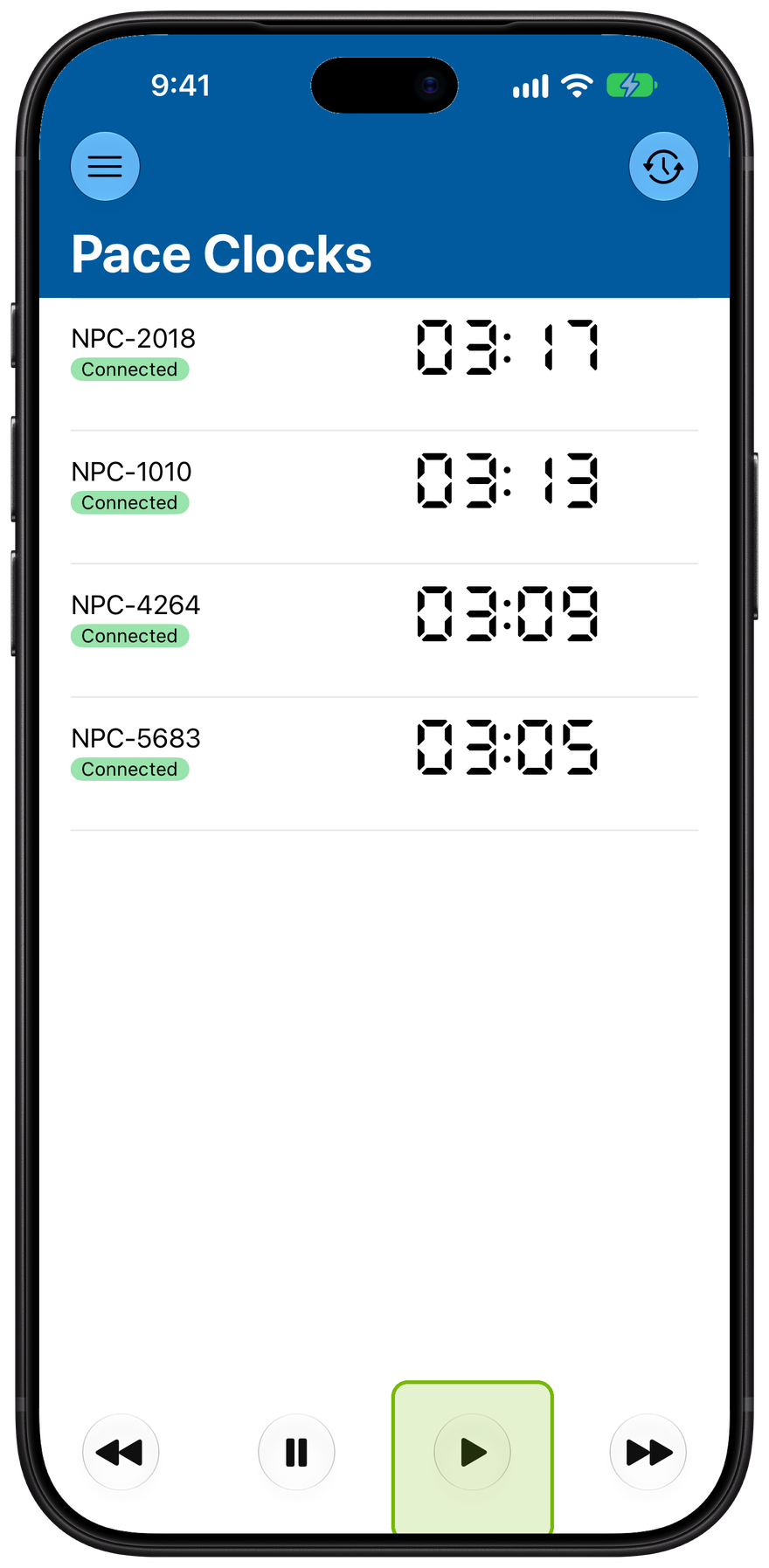
One roster, every clock
Every connected clock shows its live time in one list. The bottom controls, backward, pause, play, and forward, run all of them together.
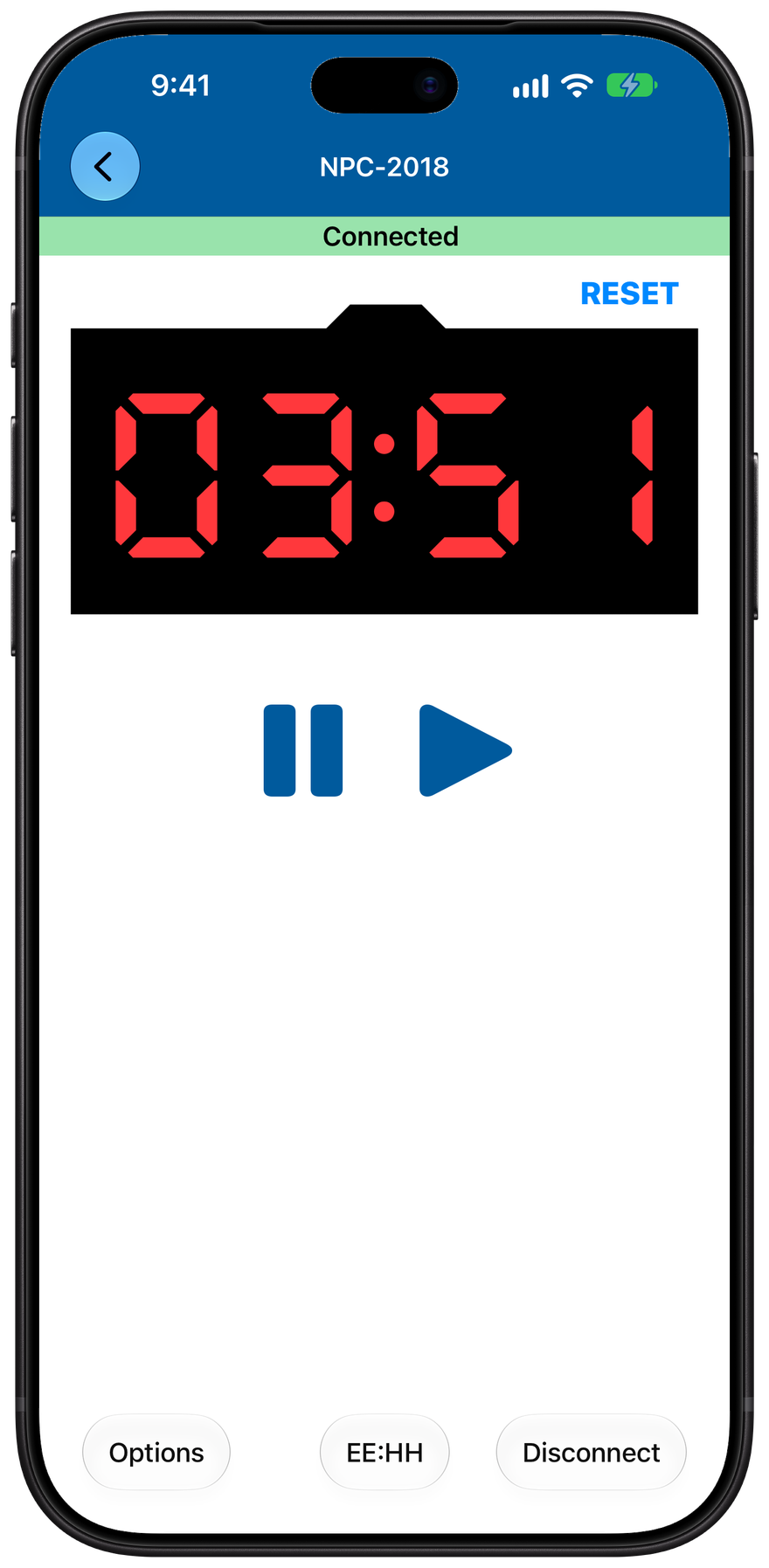
Control one clock
Tap a clock to open its own screen. Play, pause, and reset here affect only that clock, not the rest of the deck.
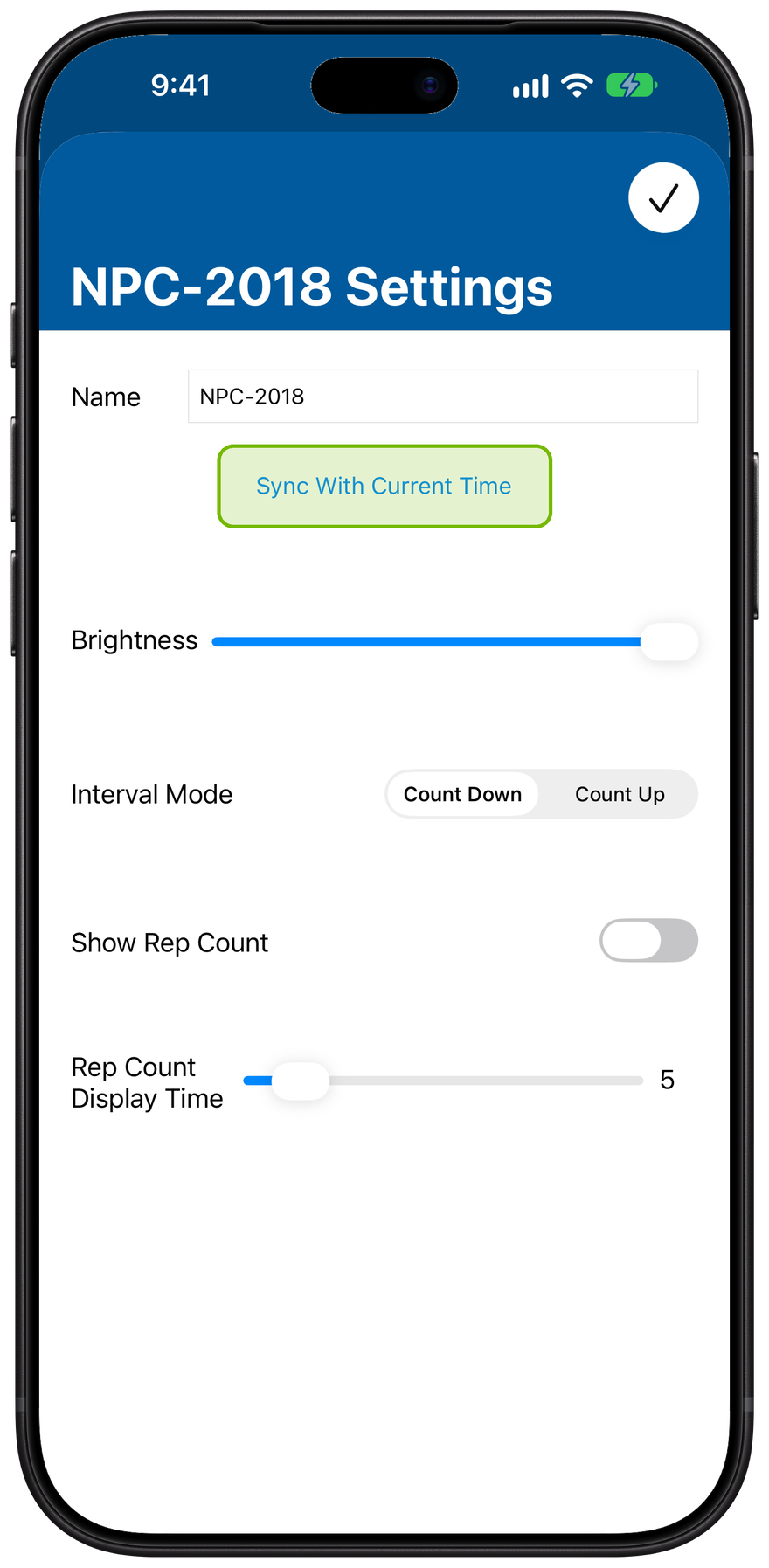
Set each clock's options
A clock's Options sync it to the current time, switch it between counting up and down, and, on hardware, set its brightness.
Tap Options on any clock.
Program a workout to your clocks
Send a workout's sets straight to your clocks. Each clock can even run a different interval group, so different lanes get different send-offs from the same workout.
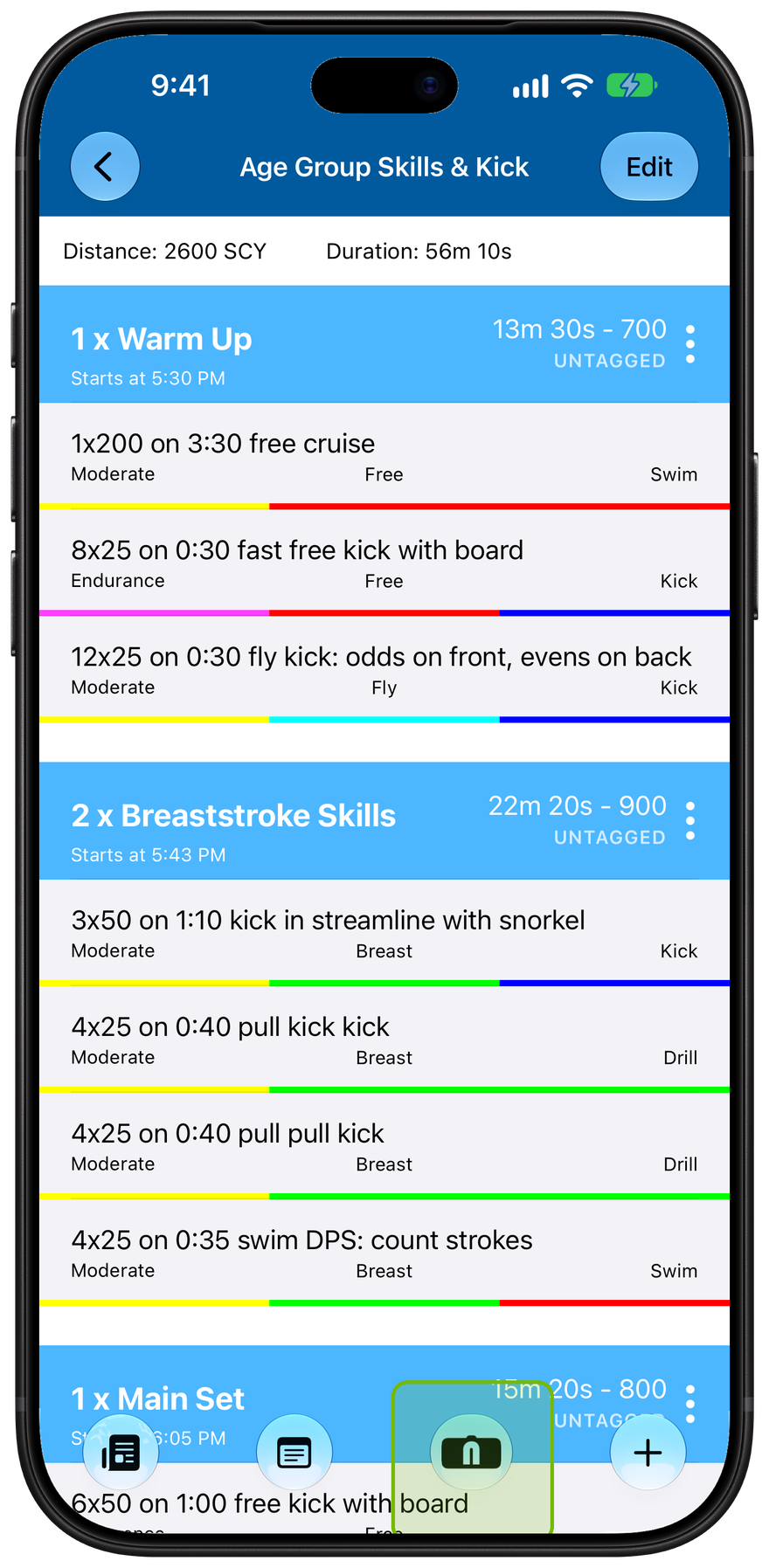
Start from a workout
Open a workout and tap the pace-clock button in its toolbar to start programming.
Tap the pace-clock button.
Pick the sets
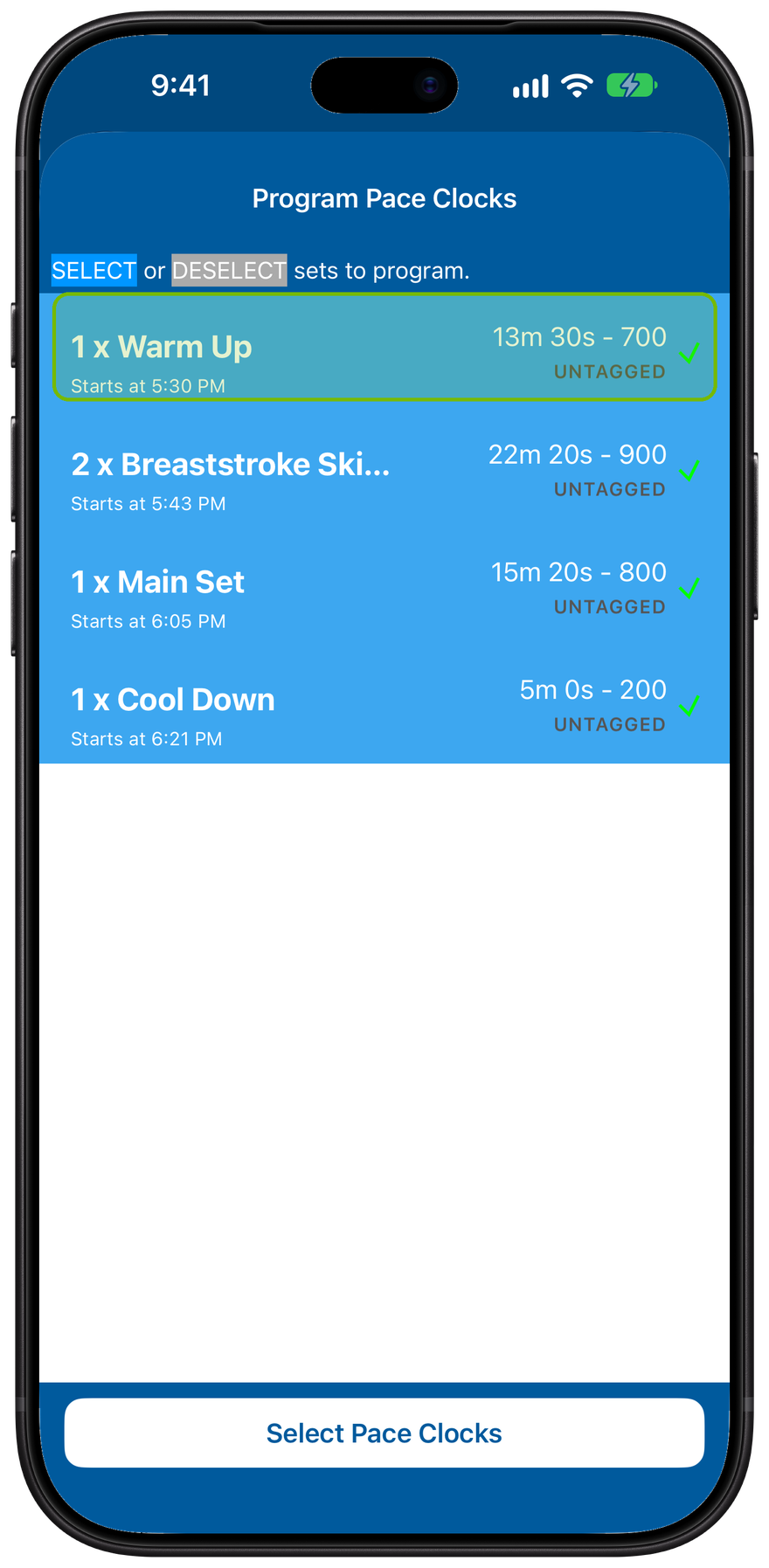
Choose which sets to send. Every set starts selected; tap one to leave it off the clocks.
Tap Select Pace Clocks.
Pick clocks and groups
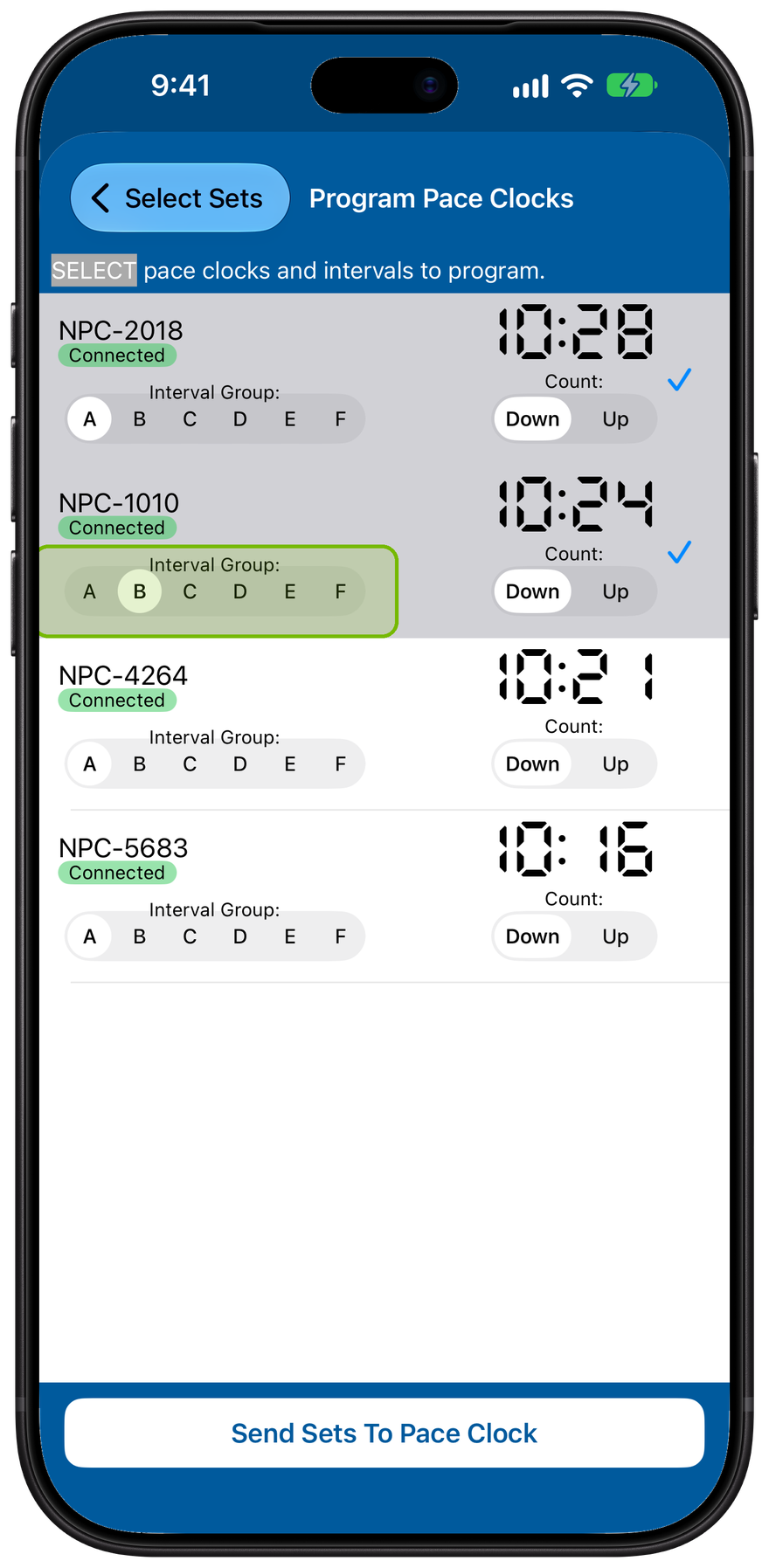
Select your clocks. Give each an interval group, A through F, so different lanes get different send-offs from the same sets.
Then Send Sets To Pace Clock.
Send, then watch
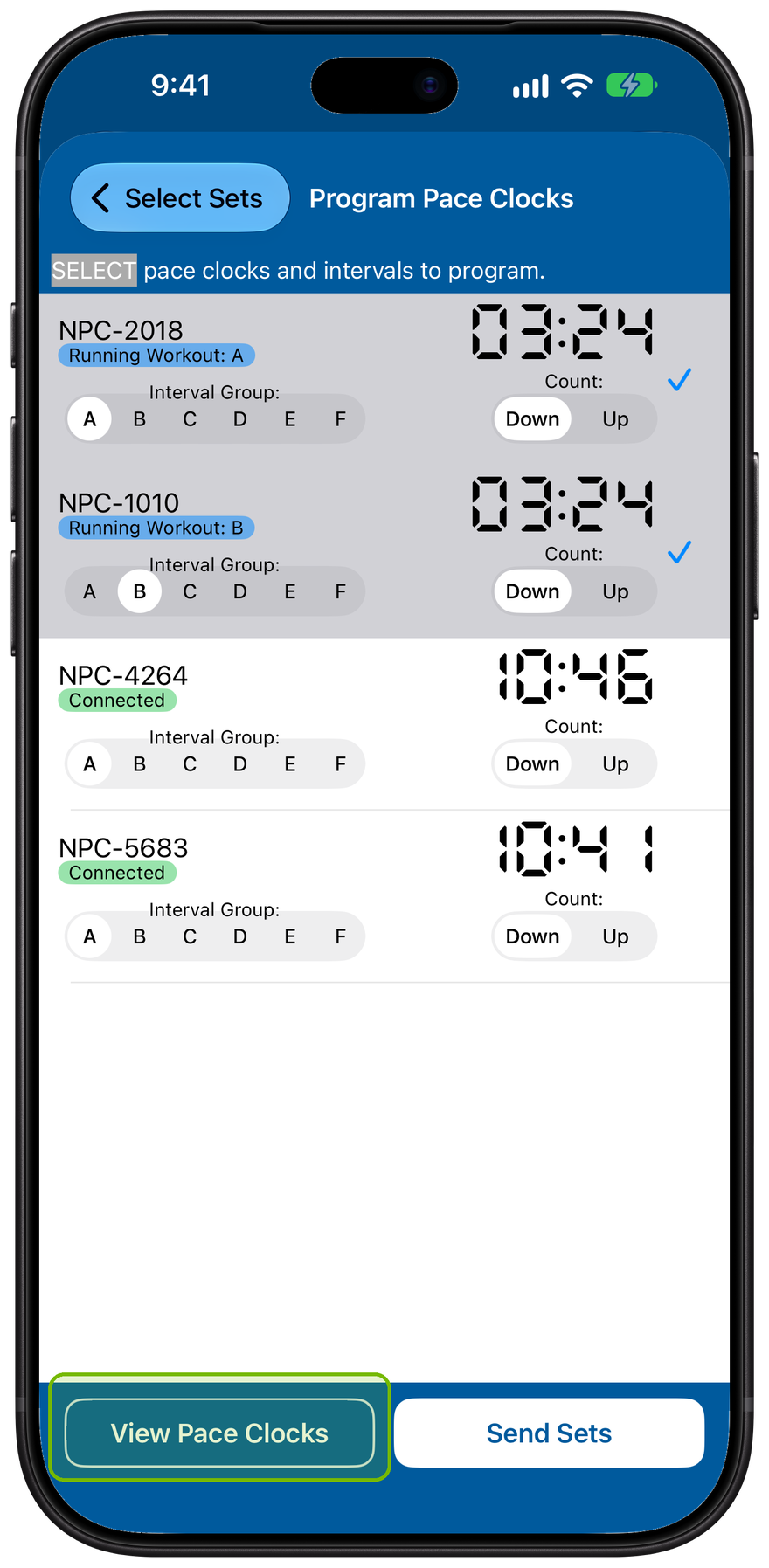
When the batch finishes, View Pace Clocks appears. It means at least one clock is done, not that every clock succeeded.
Tap View Pace Clocks.
Each clock runs its group
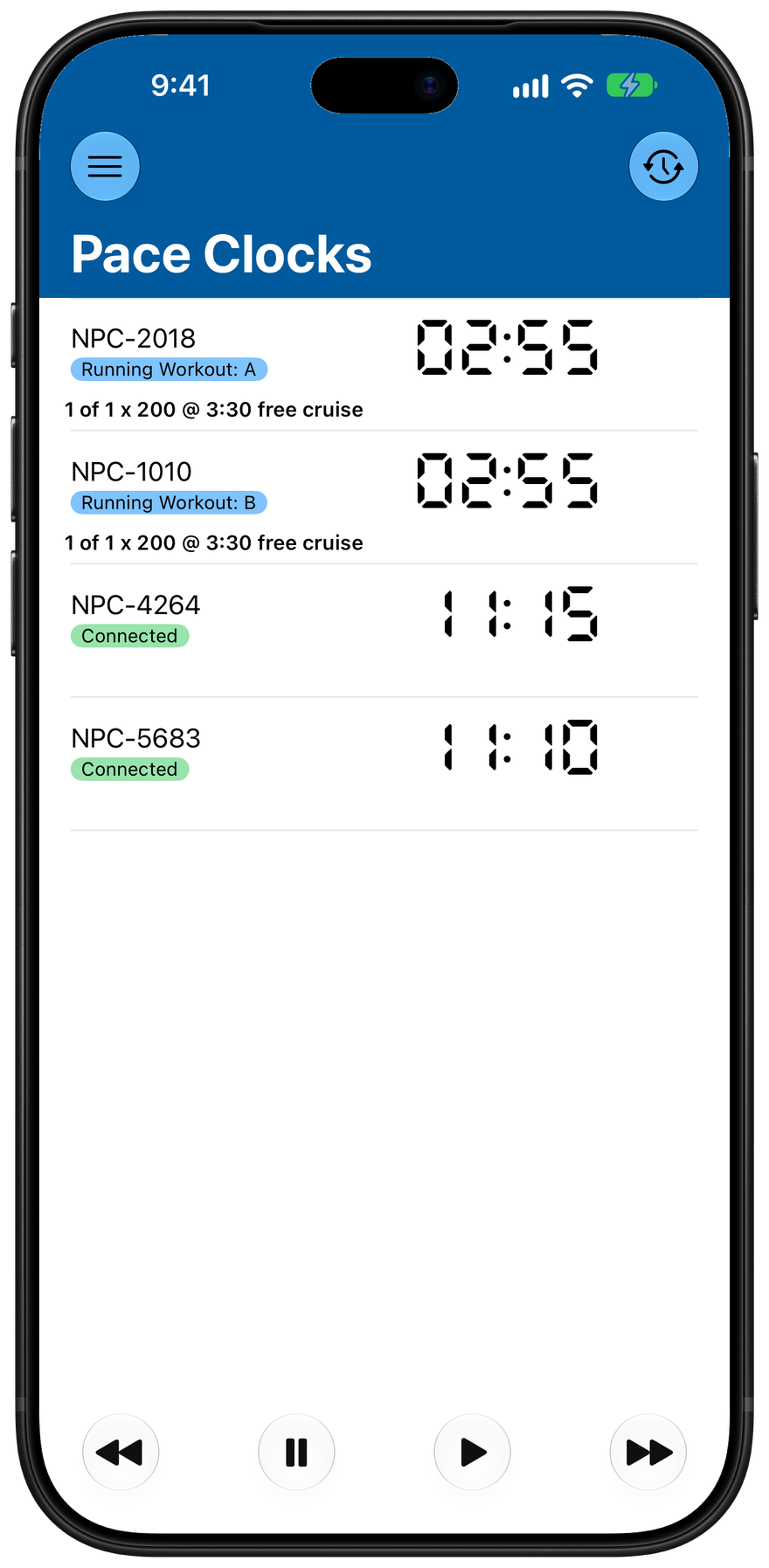
Now each clock counts down its own line. The one on group A and the one on group B run their own send-offs, side by side.
Virtual Neon Pace Clock
No hardware yet? The Virtual Neon Pace Clock is a software clock that programs, runs, and sounds just like the real thing. It even shows on your Apple Watch and casts to a TV.
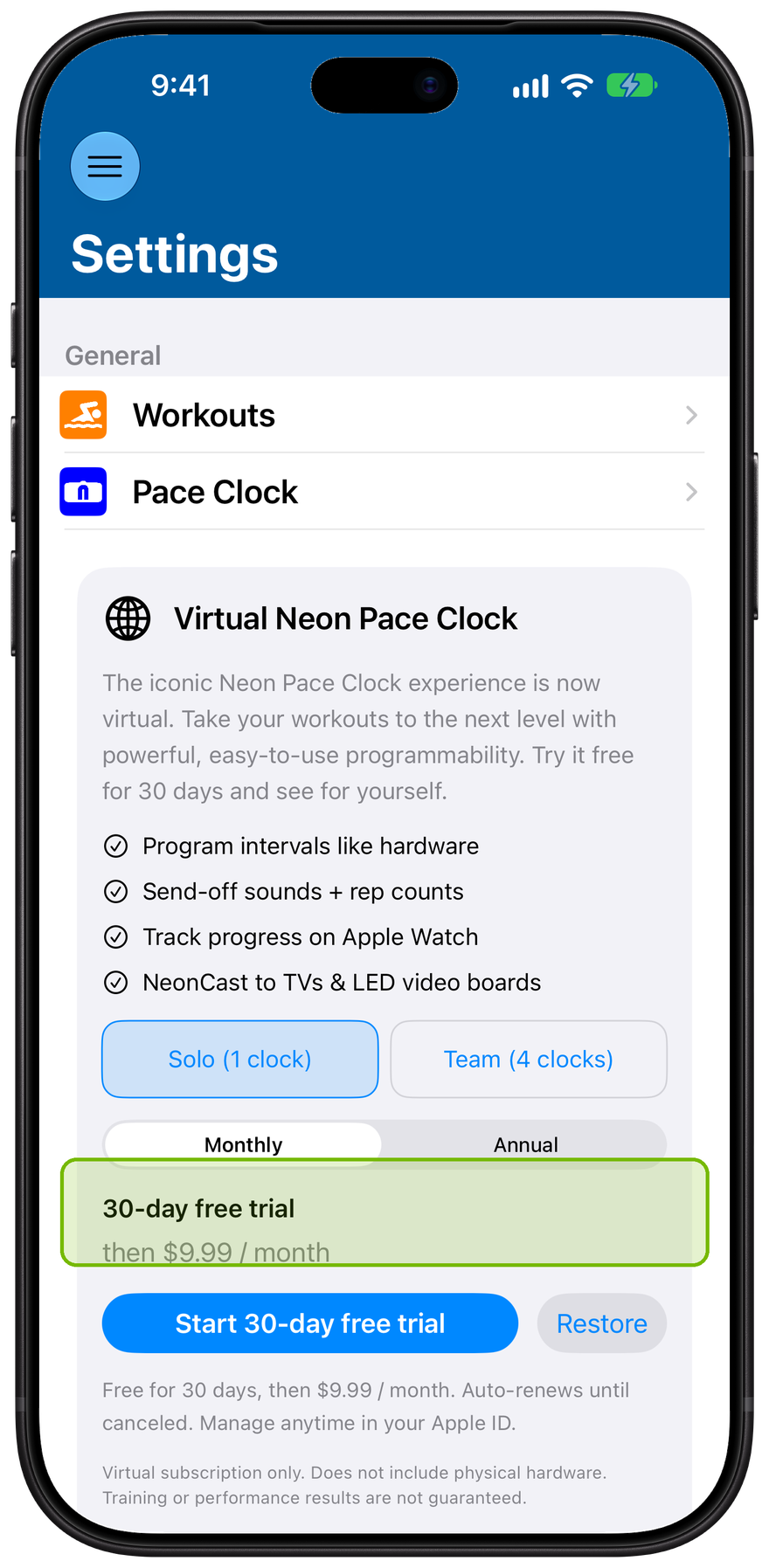
Pick a plan
Subscribe from the promo card in Settings: Solo for one clock, or Team for four. Both come with a 30-day free trial.
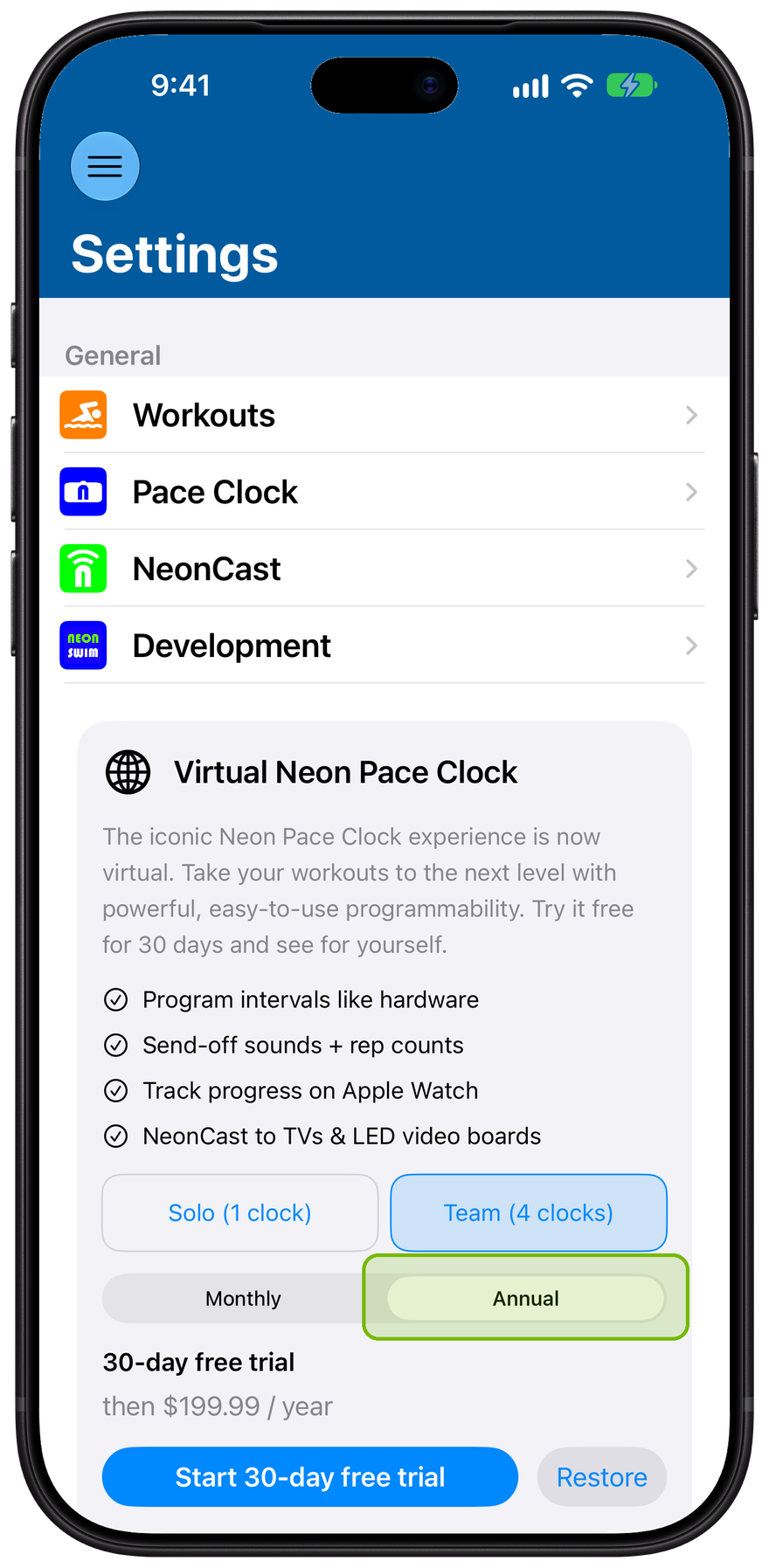
Monthly or annual
Choose monthly or annual billing, then start the trial. Restore brings back a plan you already bought on another device.
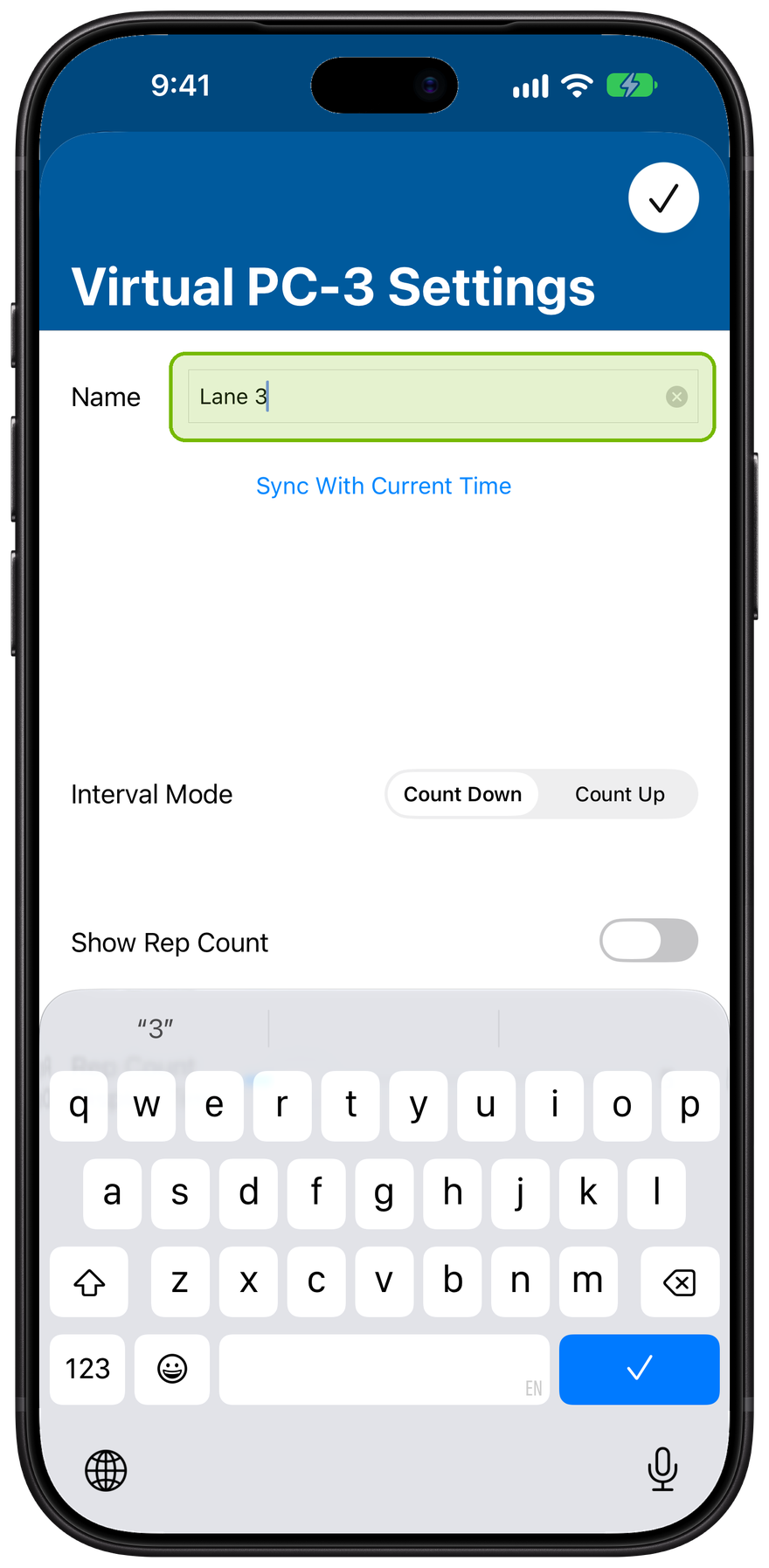
Name it for a lane
A virtual clock behaves like hardware, and adds one thing: a Name you can edit. Call it after a lane or a group.
Edit the Name field.
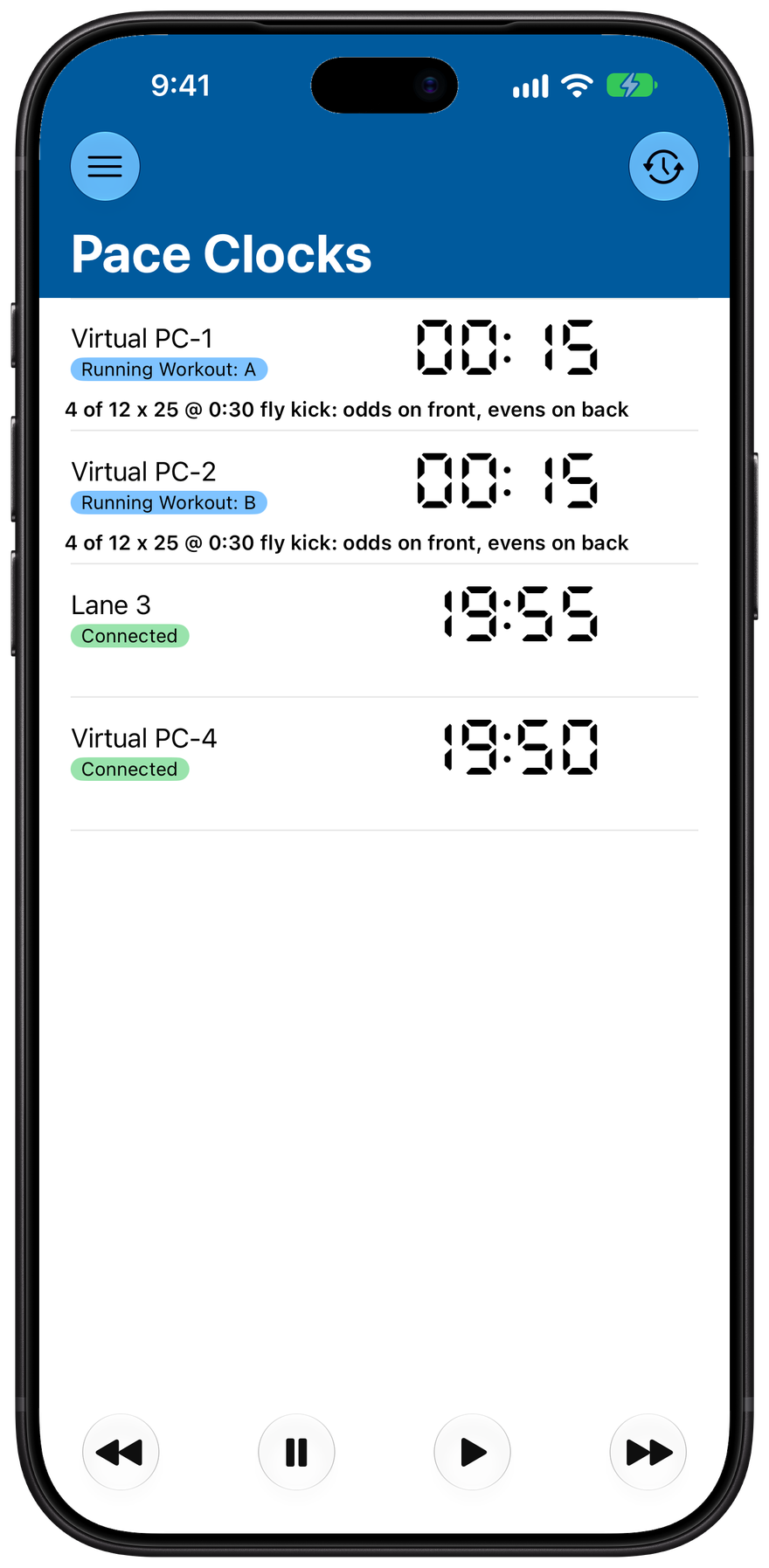
It shows up renamed
The new name follows the clock everywhere it appears, so Lane 3 is easy to find in a room full of clocks.
Send-off sounds and rep counts
Neon can play an audible send-off from your phone so swimmers hear each interval start. It ships off, so the first step is turning it on.
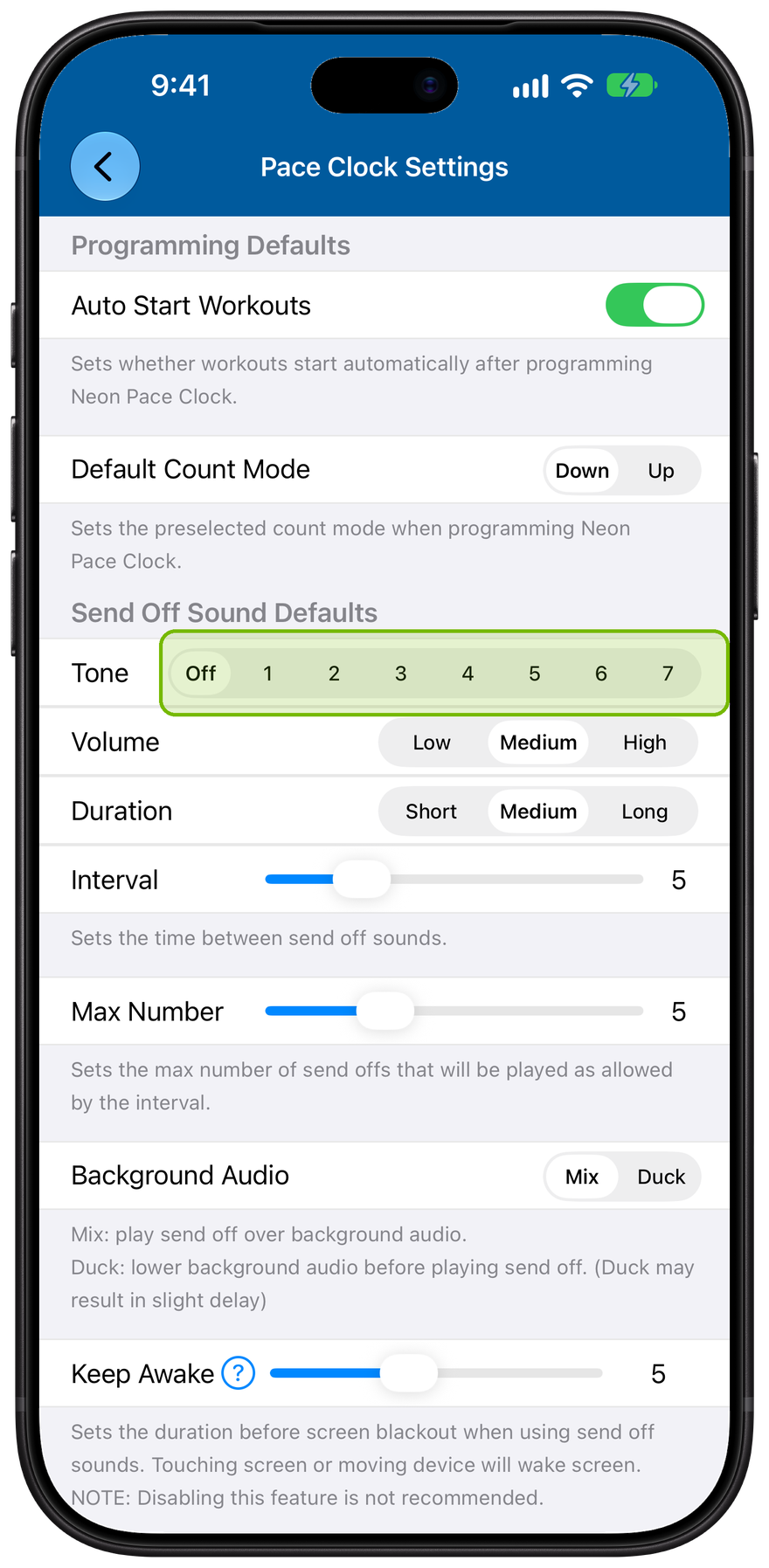
Turn on the sound
Send-off sound ships off. In Settings, Pace Clock, pick a Tone from 1 to 7. Nothing plays until you do.
Pick a tone.
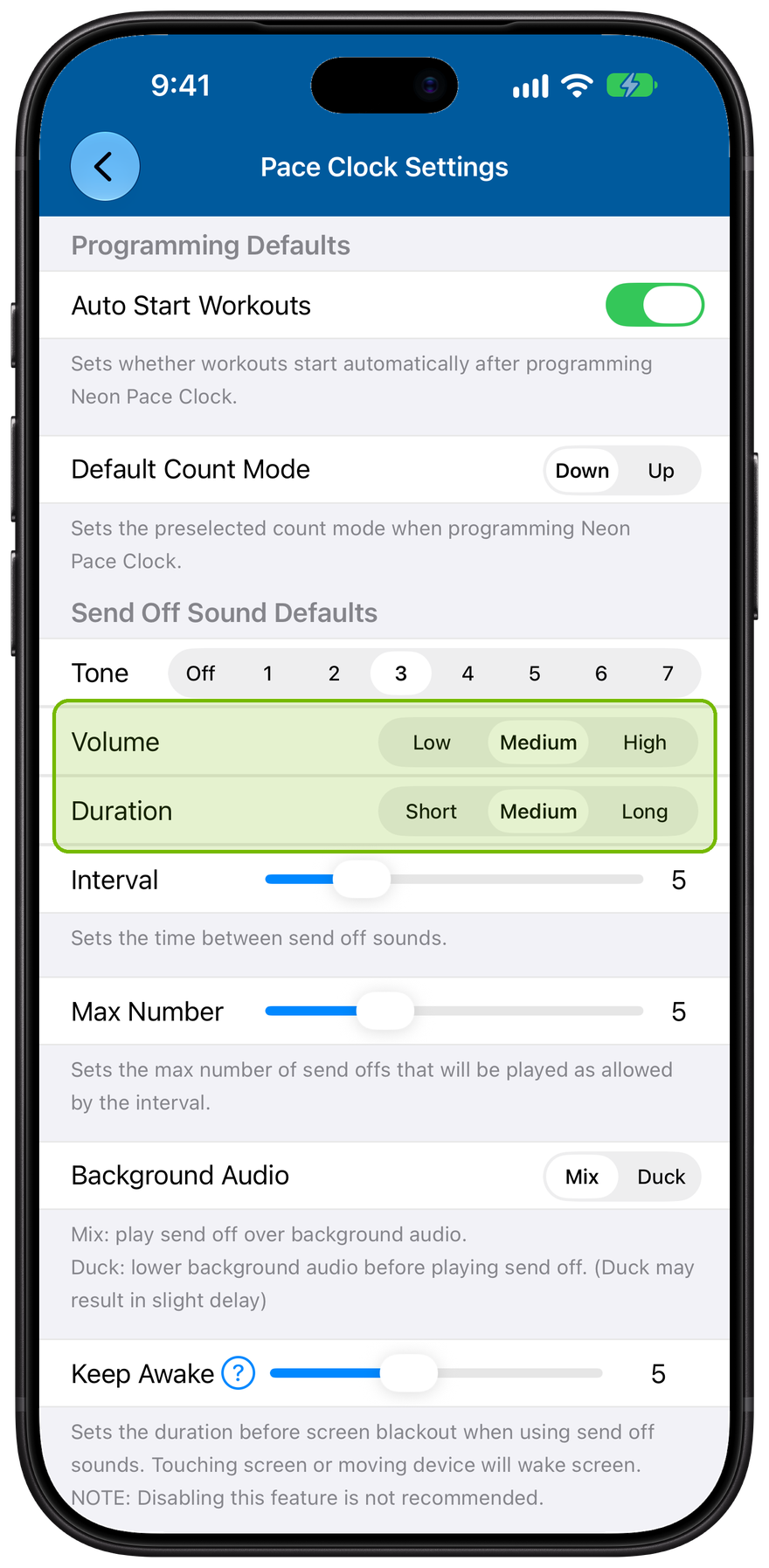
Shape the sound
Set Volume, Duration, Interval (the seconds between cues), and Max Number (how many play). Mix or Duck decides how it sits over other audio.
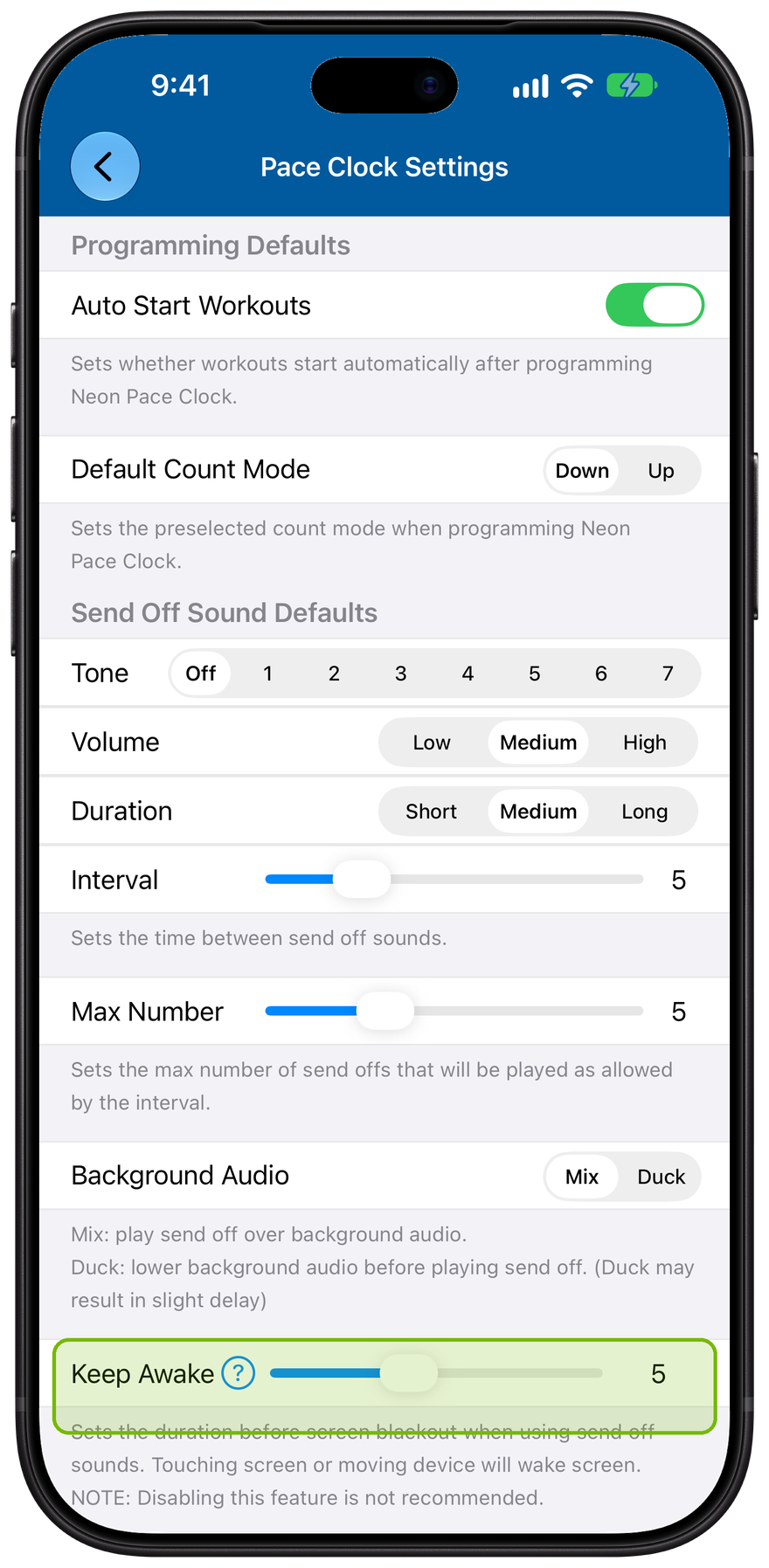
Keep it awake
Sounds play only while Neon is open and in front. Keep Awake keeps it running so the cues keep coming, even after the screen blacks out to save battery.
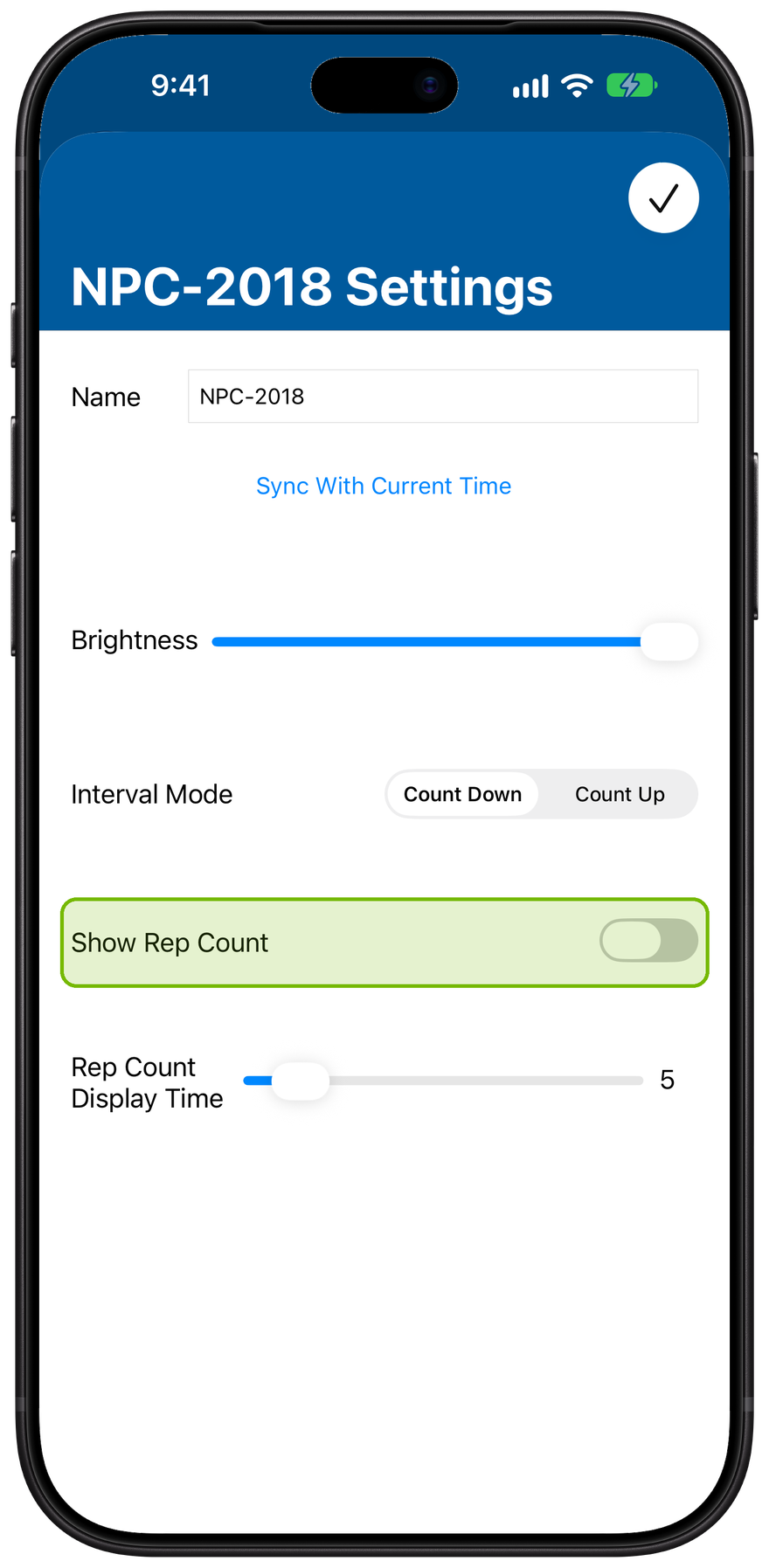
Show the rep number
Rep counts flash the current rep at the start of each interval, then return to the time. Turn them on in a clock's Options.