Neon Swim User Guide › Chapter 2
Chapter 2Organize, print, and share
Keep a growing workout library tidy, and get a workout out of the app when you need it on the wall or in another coach's hands.
Folders and organizing
As your library grows, folders keep it easy to navigate. Group workouts by season, squad, or training phase.
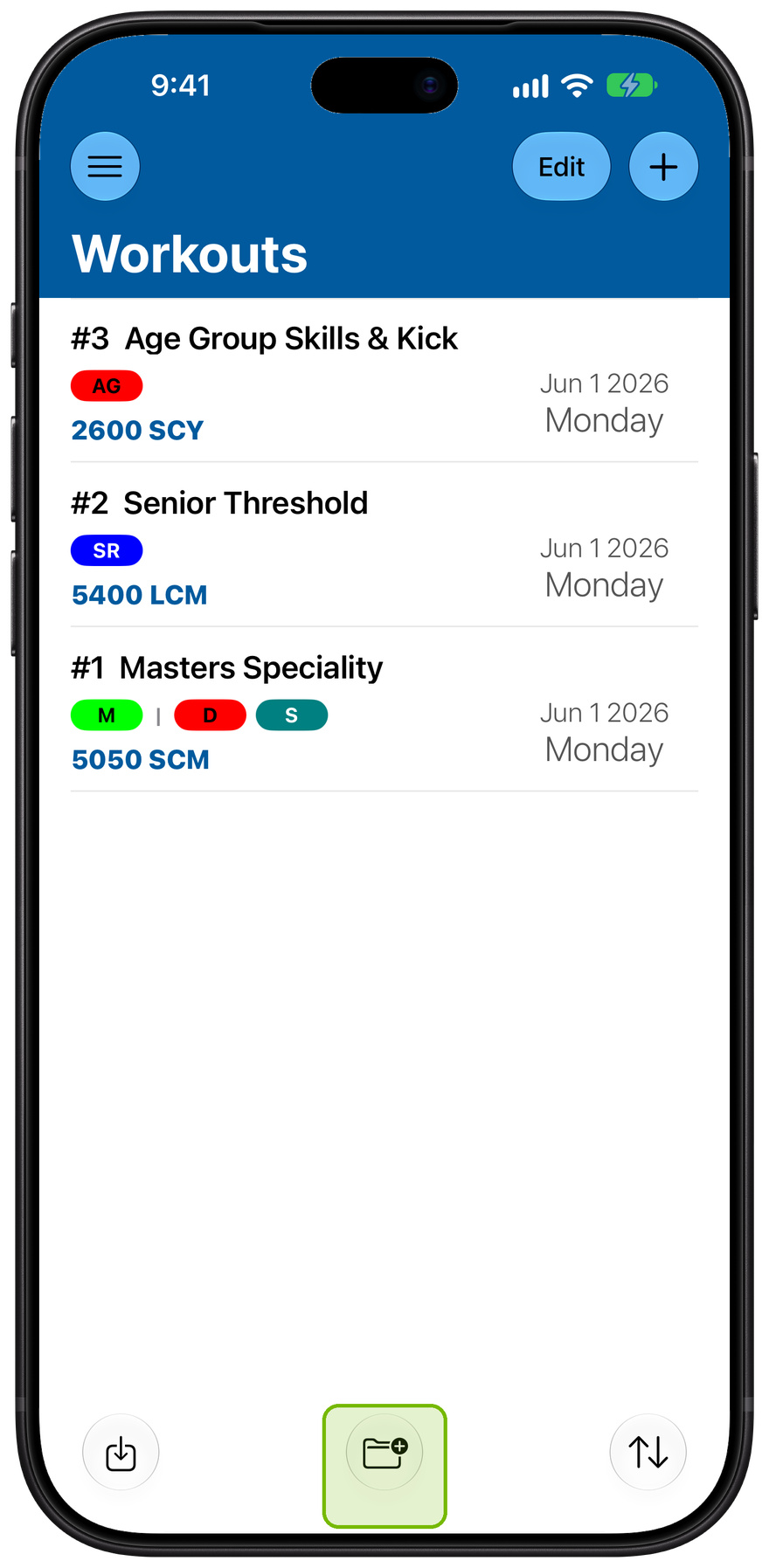
Start a folder
Every workout starts in one list. As it grows, folders keep it organized by season, squad, or training phase.
Tap the new-folder button to make one.
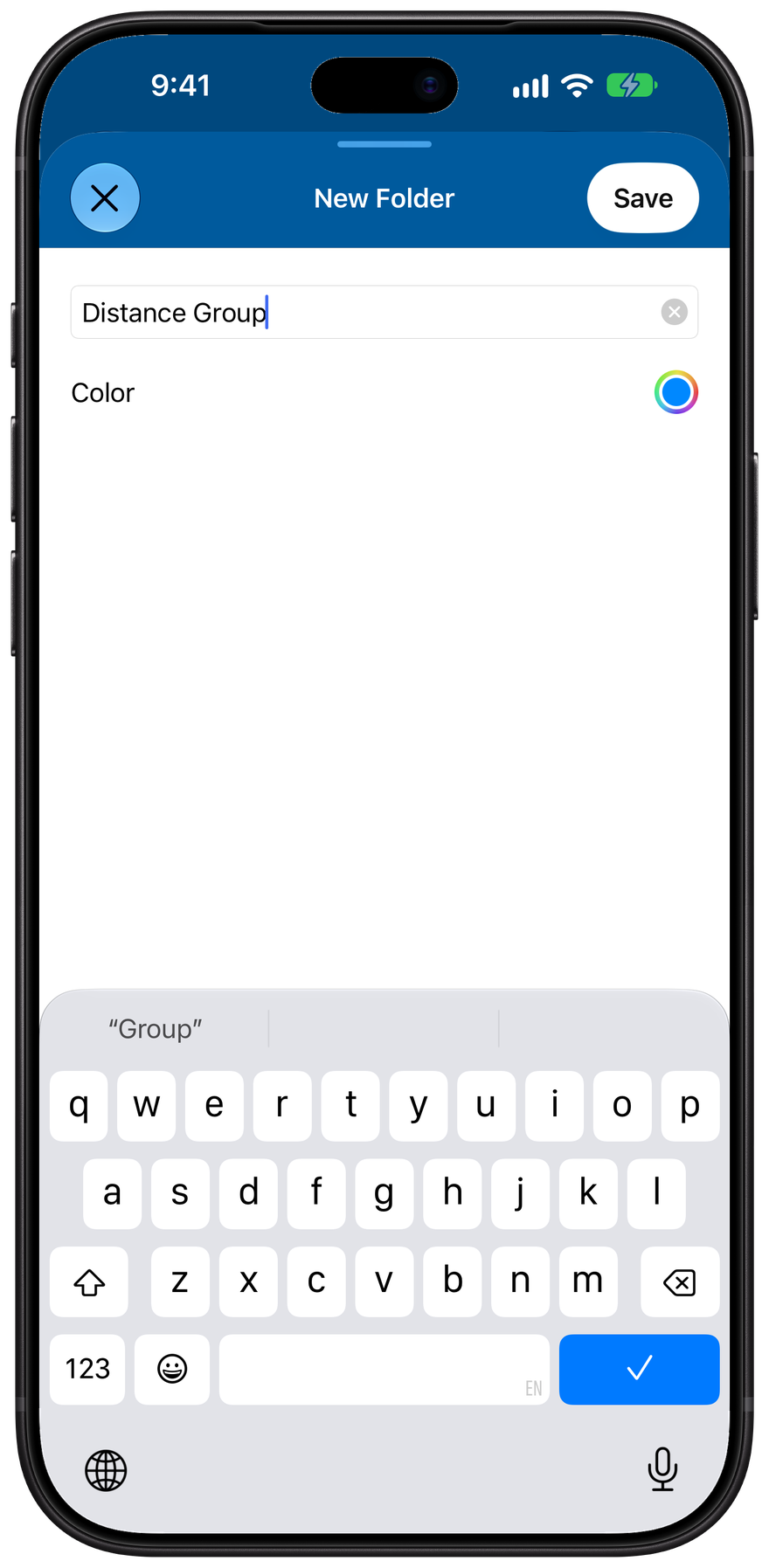
Name it
Give the folder a name and a color, then Save. You can even put folders inside folders to build a deeper structure.
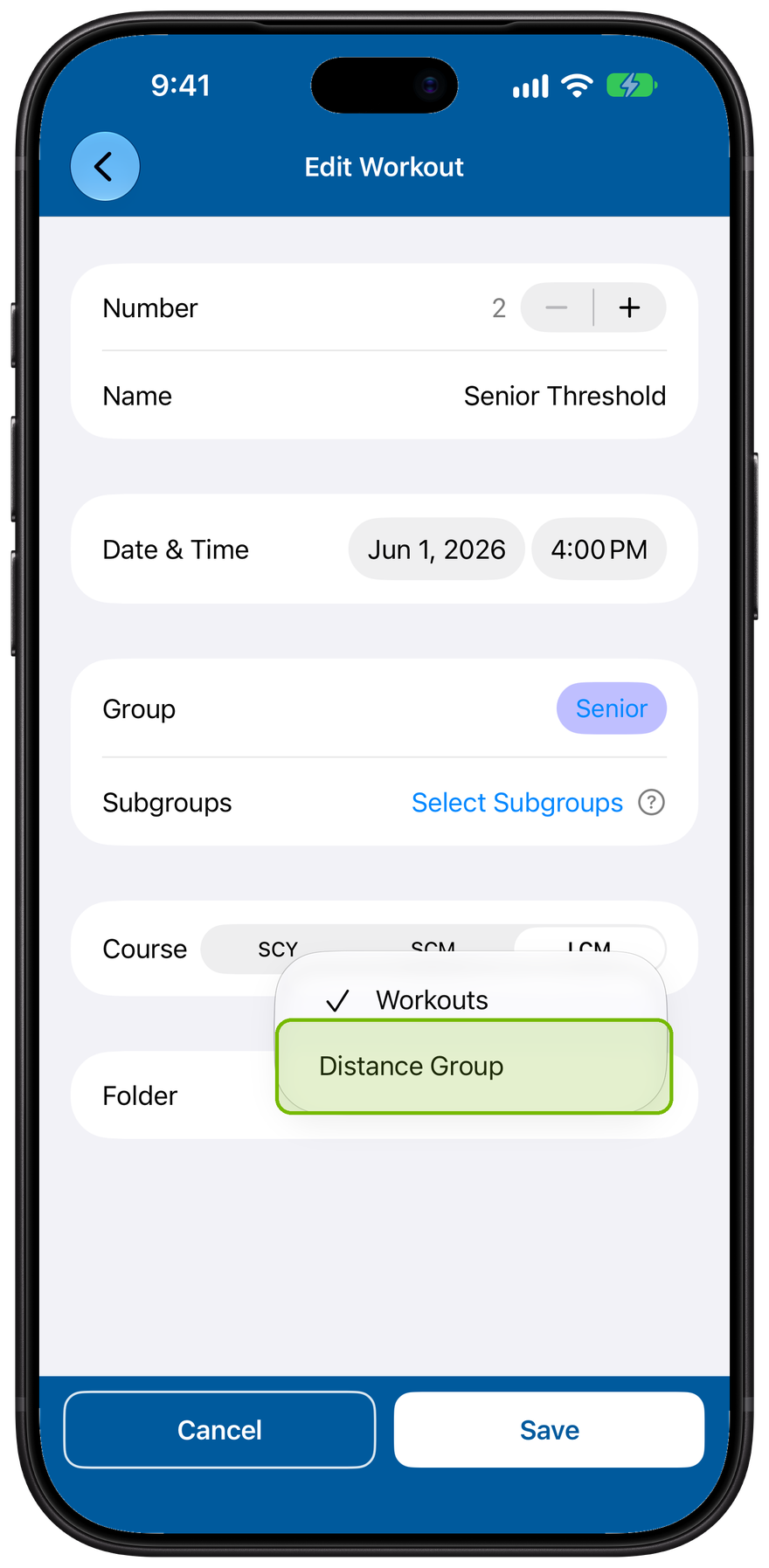
Move a workout in
To move a workout, open it (tap Edit, then the workout) and set its Folder. Choose Workouts to move it back to the main list.
Pick the folder, then Save.
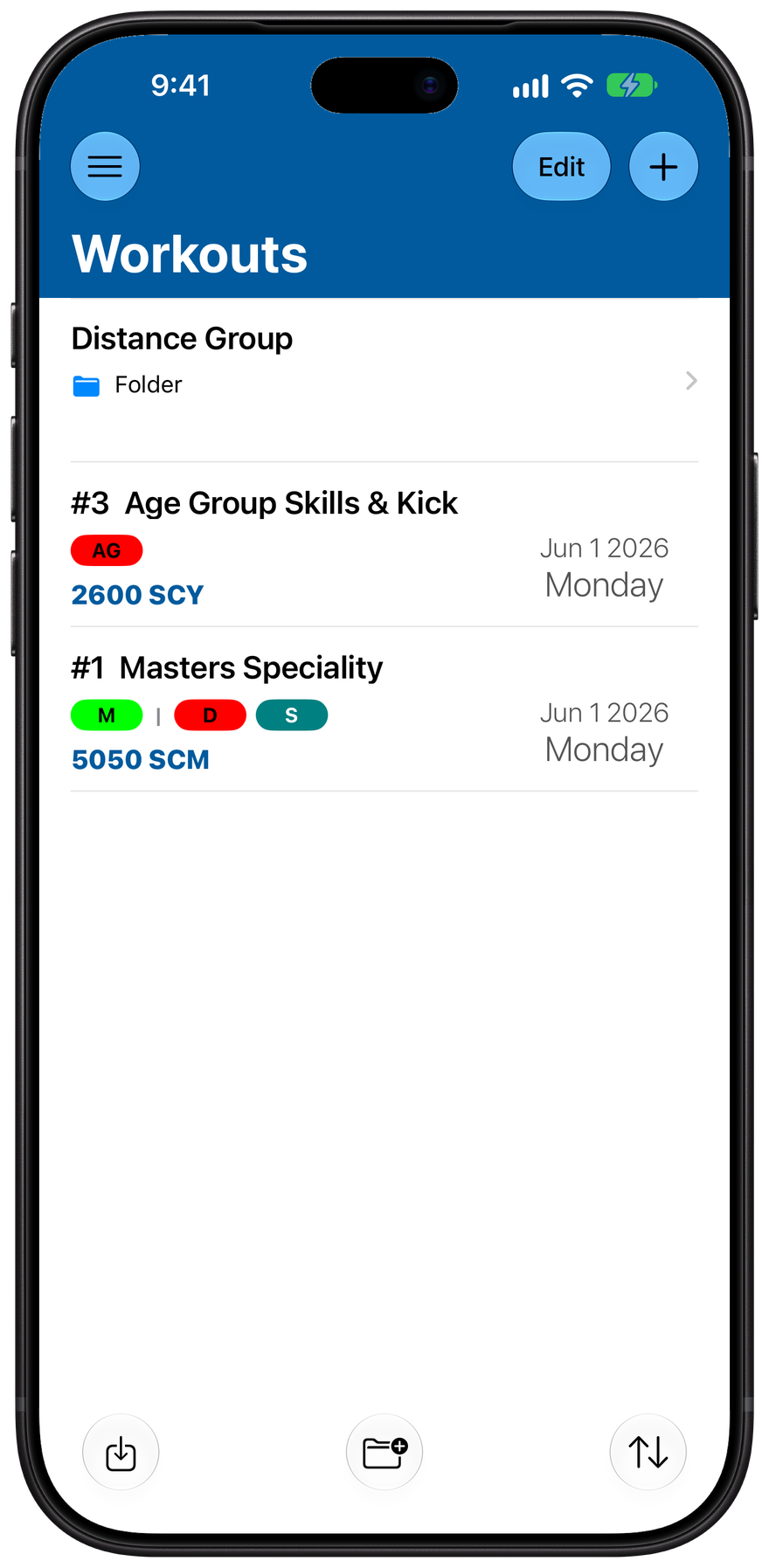
How the list reads
Folders sort to the top of the list; your loose workouts stay below. Tap a folder to open what's inside it.
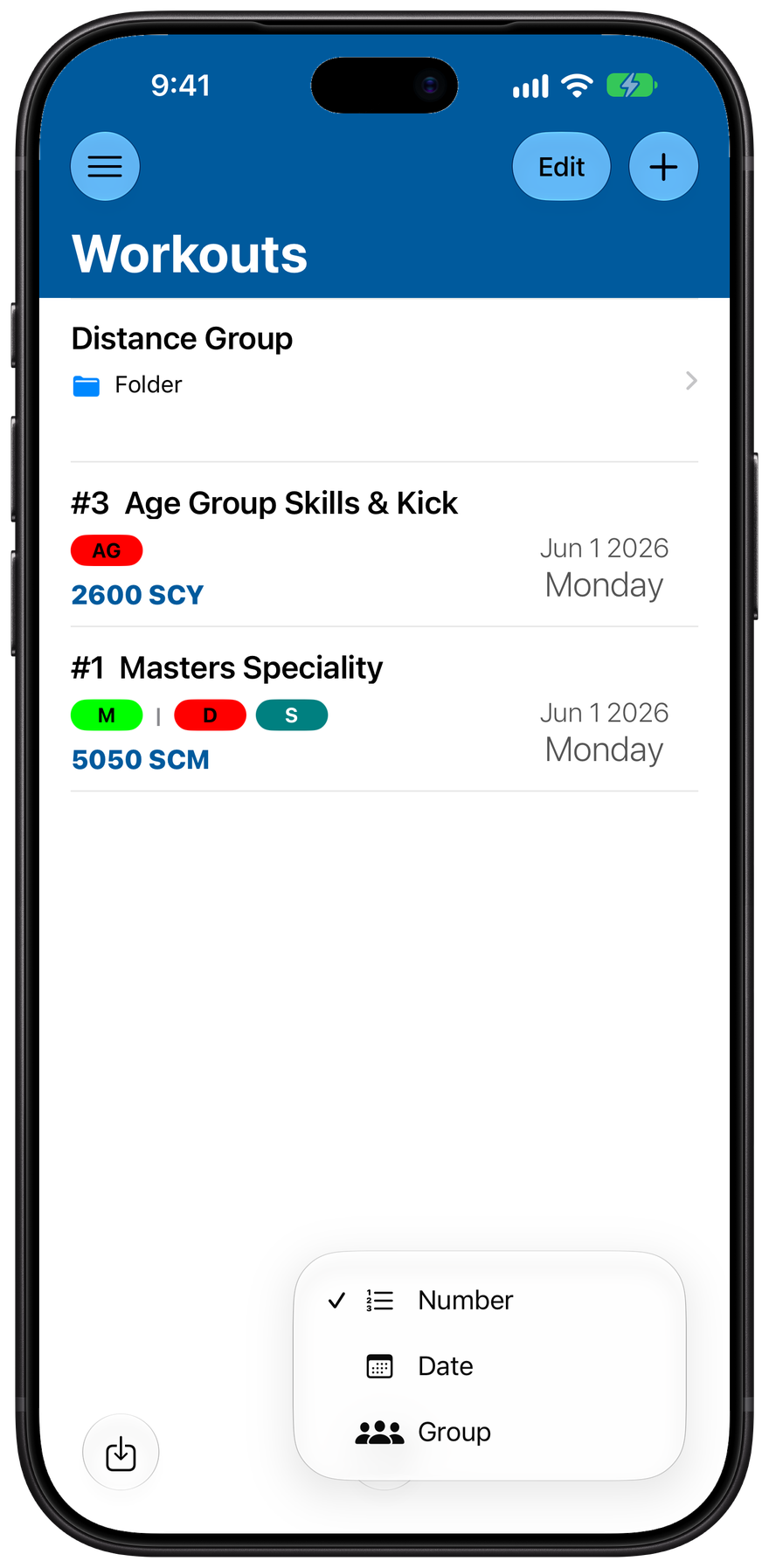
Sort the list
Sort the workouts by Number, Date, or Group. Neon starts with the highest workout number first.
Print and share your workout
Turn a workout into a clean sheet you can print for the wall or send to another coach.
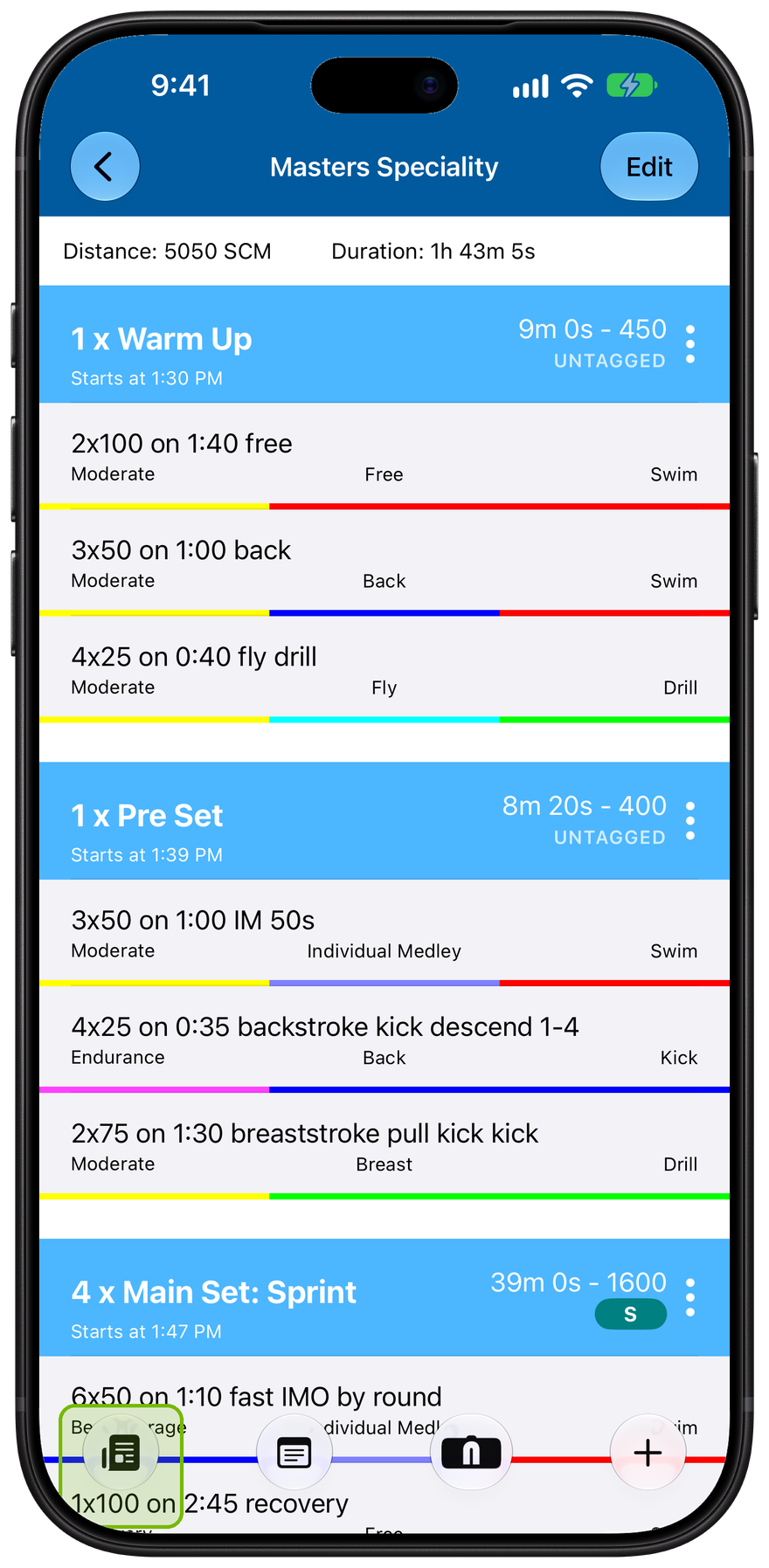
Make a PDF
Open a workout and make a PDF of it: a clean sheet with every set, laid out for printing and sharing.
Tap Create PDF.
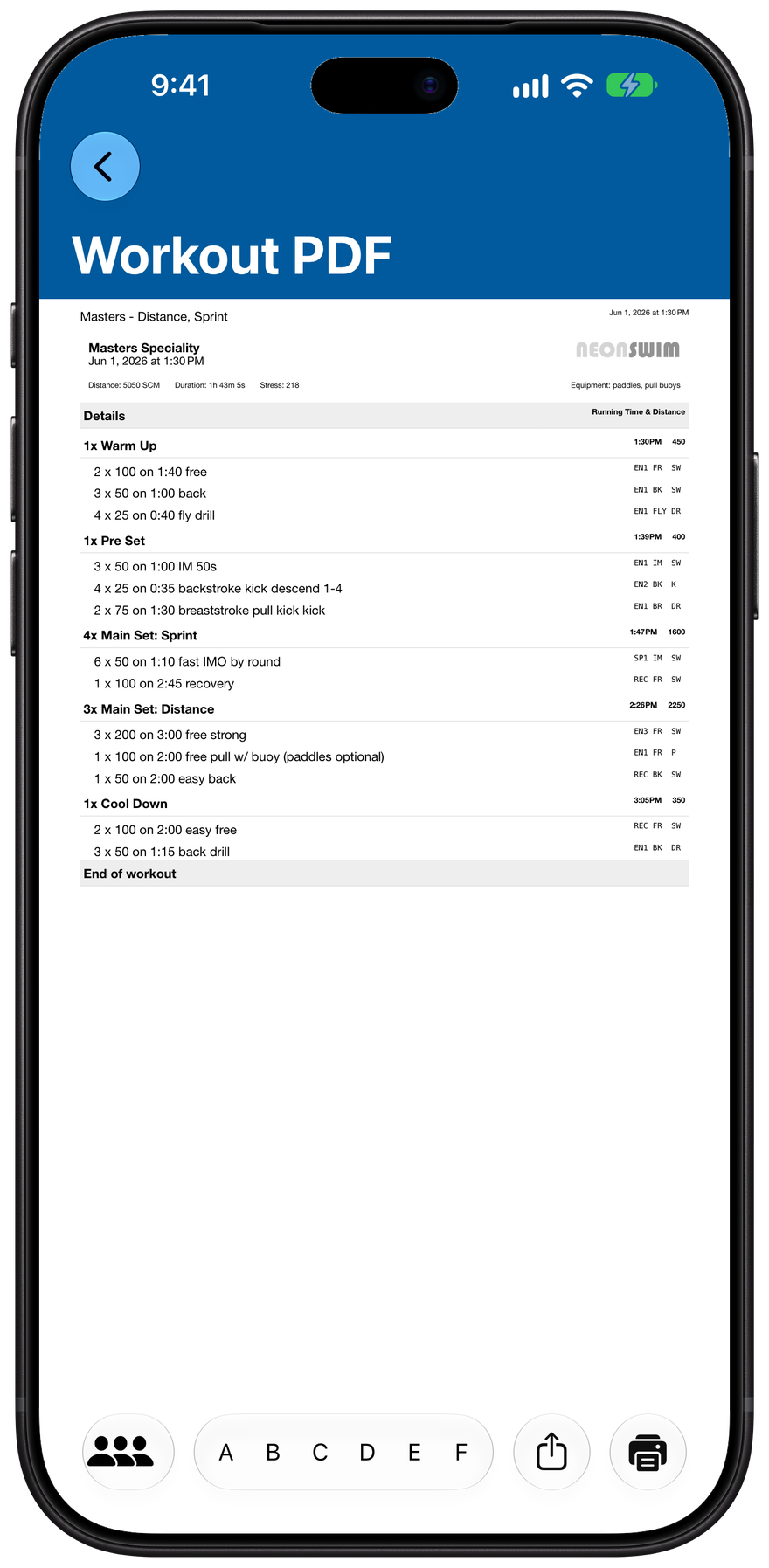
Review it
The preview shows the whole workout, every set, on a page built for print. Review it before you send it anywhere.
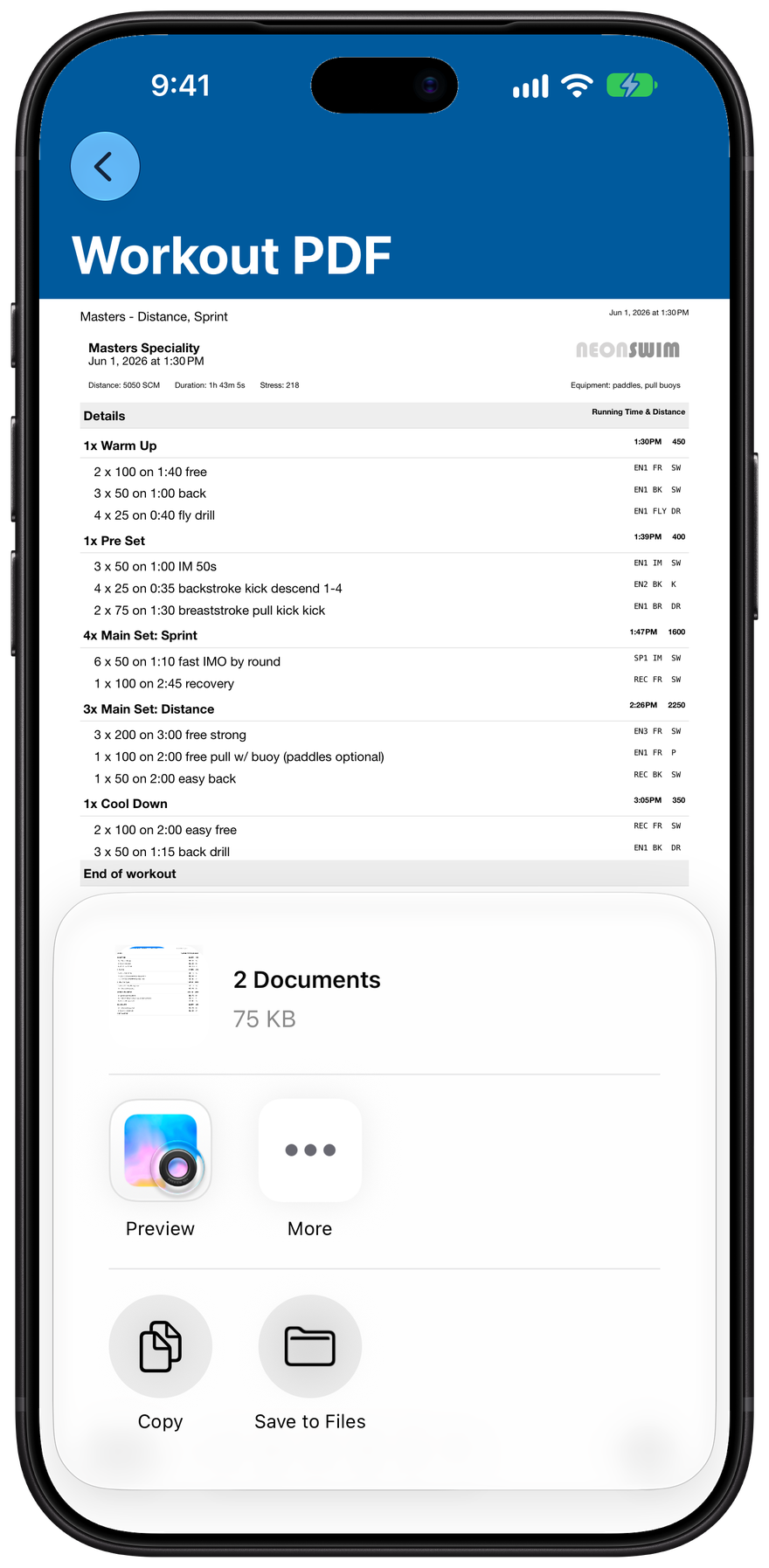
Share it
Share sends it out with two files: the PDF to read or print, and a Neon workout file another coach can import instead of retyping it.
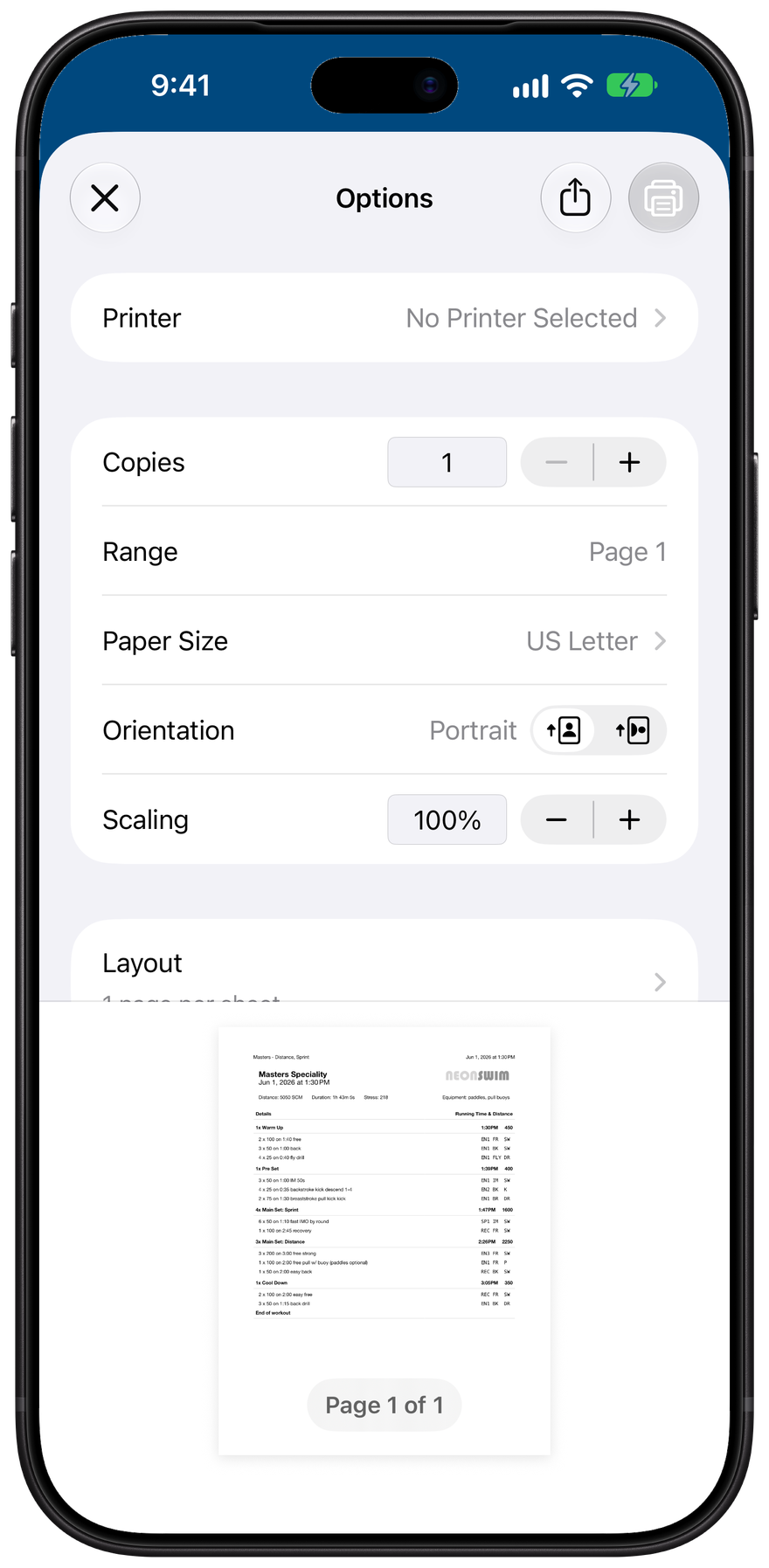
Print it
Or send it straight to a printer. Tap the printer icon and your device's own print options open for the sheet.