Neon Swim User Guide › Chapter 1
Chapter 1Get started
Everything you need for your first practice with Neon Swim: your first launch, creating a workout, building its sets, and importing workouts you already have.
Get started
Open the app for the first time and get your bearings: the Home screen, the ready-made template workouts, and the main menu.
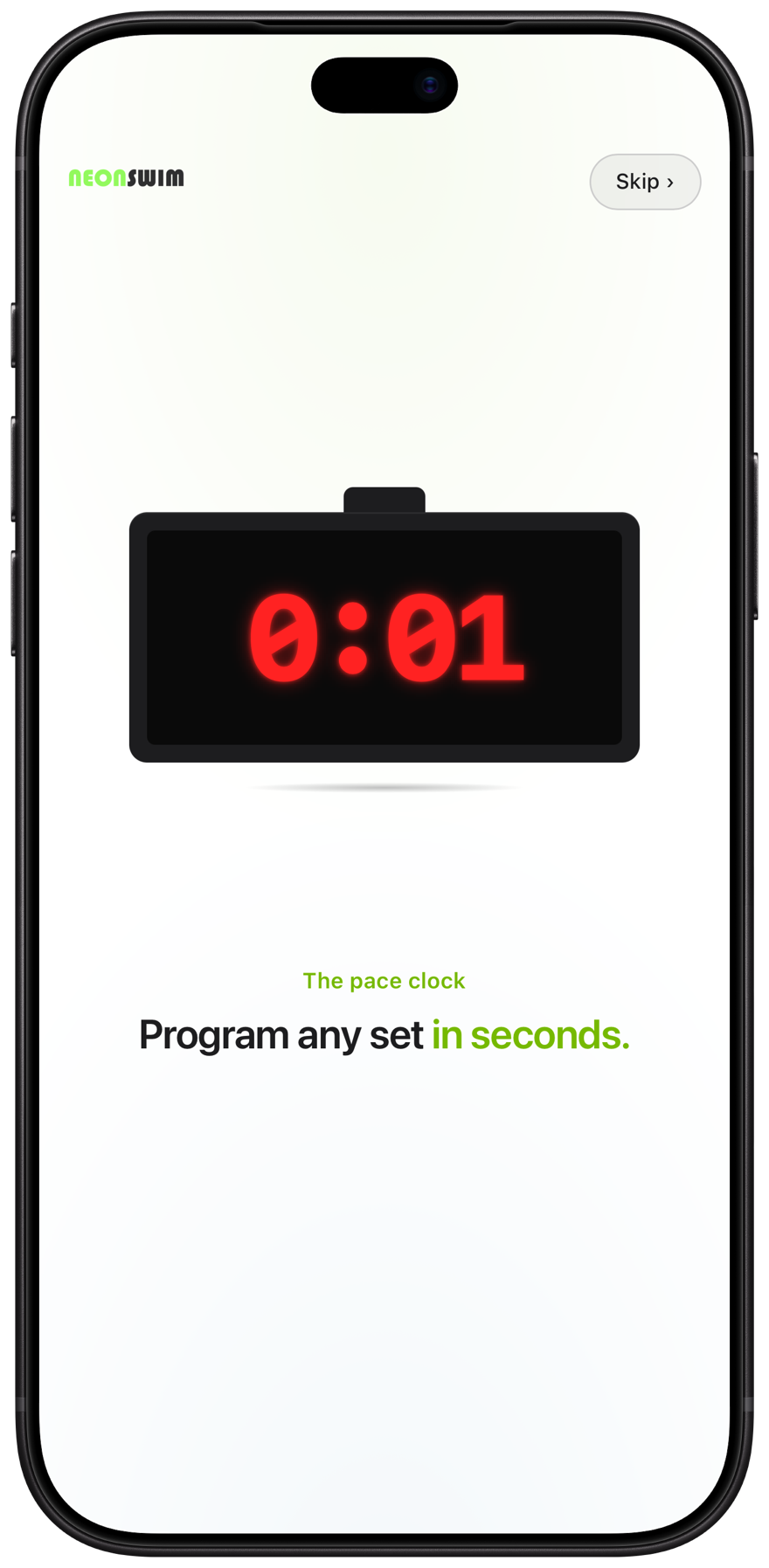
First launch
A short intro plays the very first time you open the app, then never again. It previews what Neon Swim does.
Tap Skip to go straight to Home.
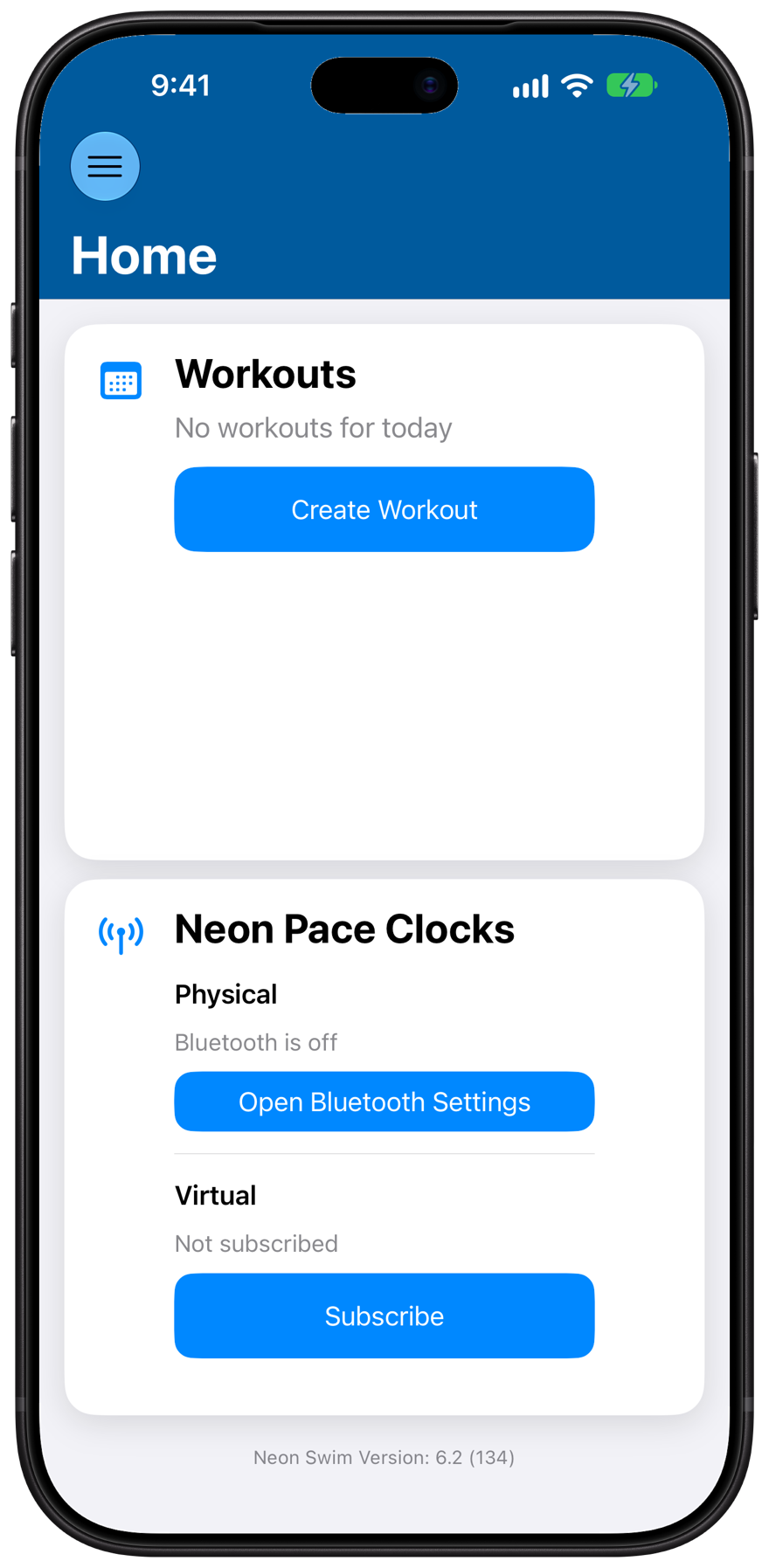
Your Home screen
Home is your starting point. Workouts is where you build and open your practices. Neon Pace Clocks sets up a clock: connect a physical one over Bluetooth, or run a virtual one on your device.
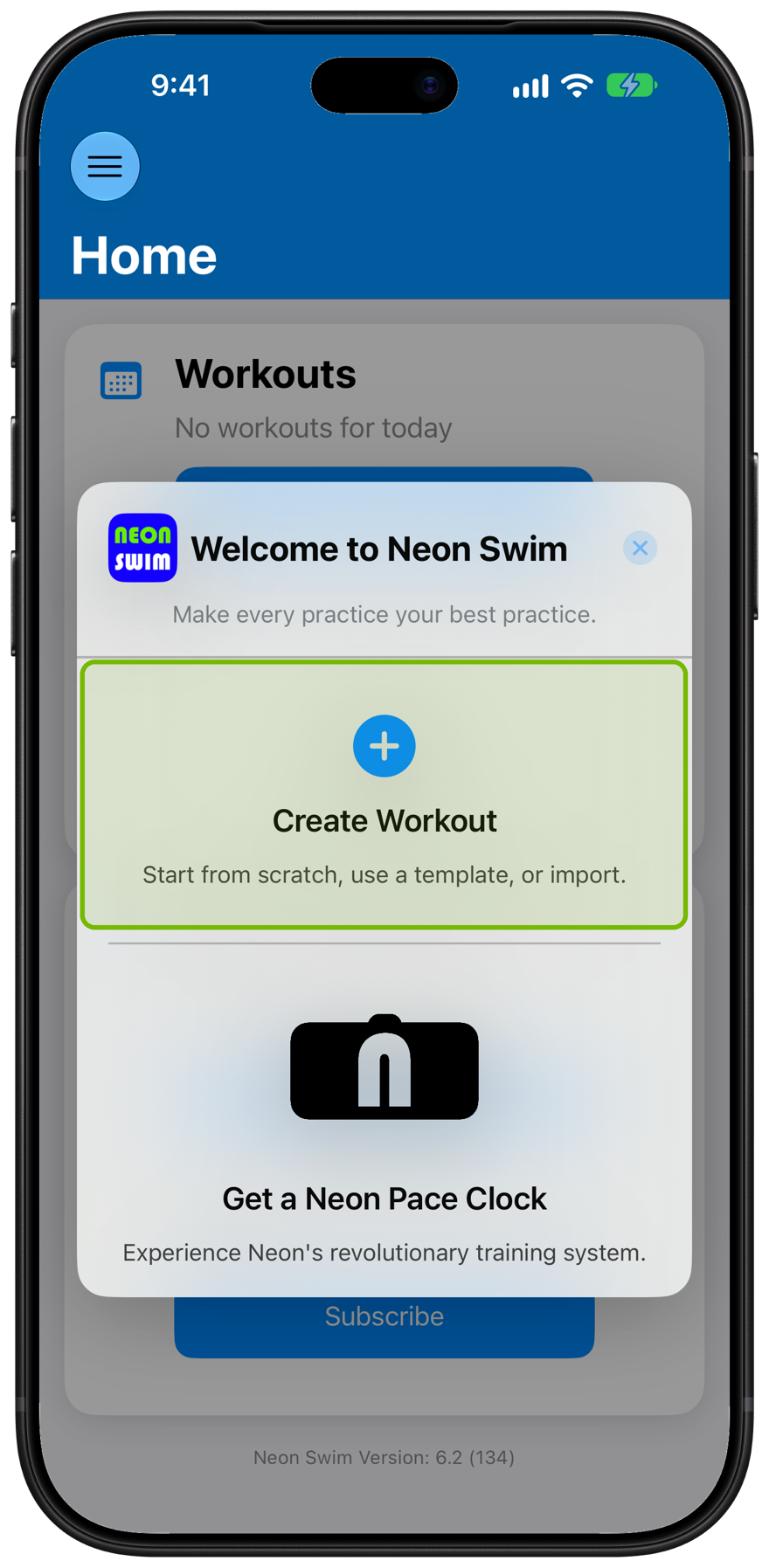
The Welcome card
On first launch, a Welcome card offers the two things coaches reach for first: build a workout, or get a Neon Pace Clock.
Tap Create Workout to start a practice.
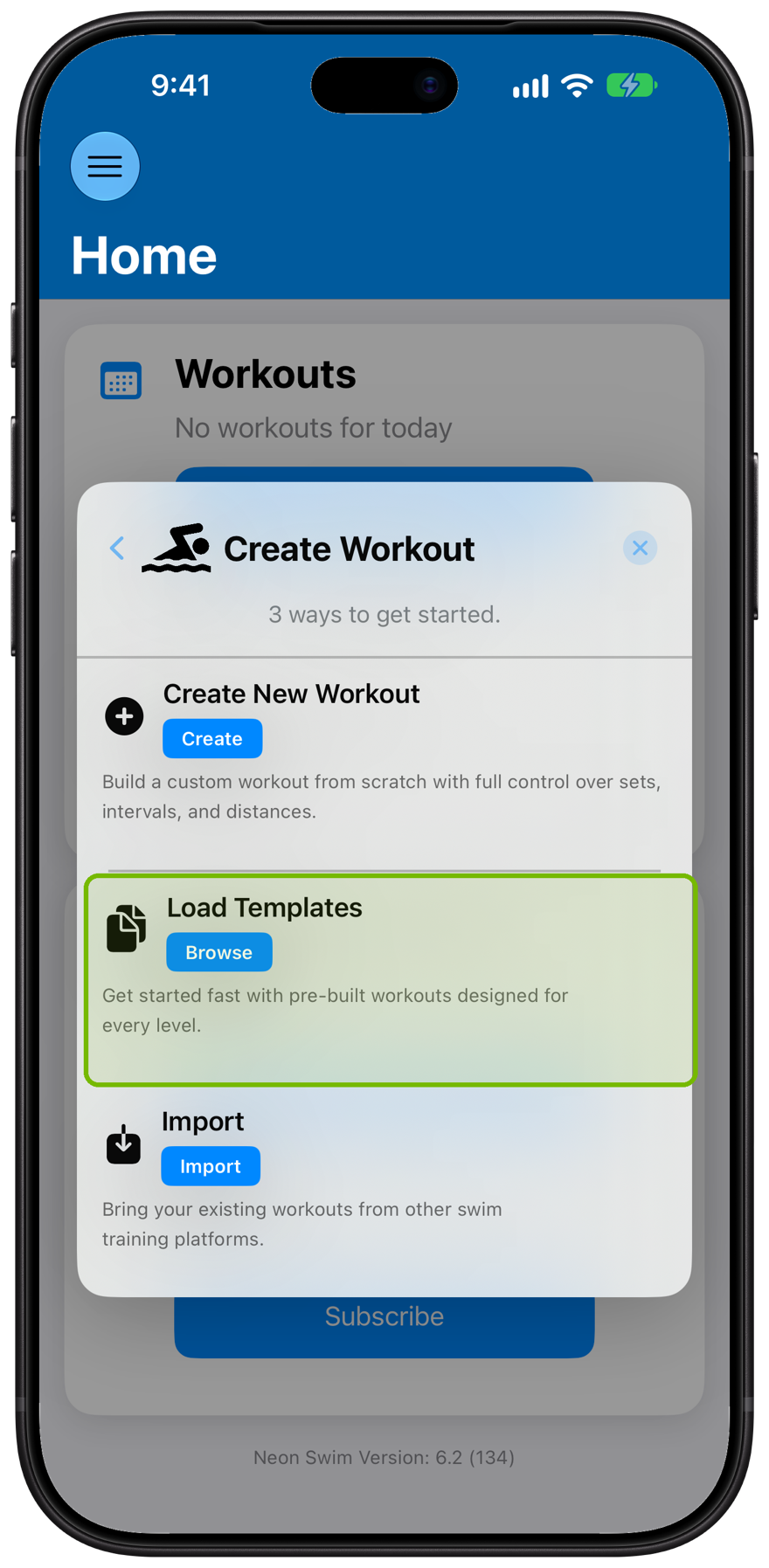
Three ways to get started
There are three ways to start: build a workout from scratch, load ready-made templates, or import workouts you already have.
Tap Load Templates. The templates load right away.
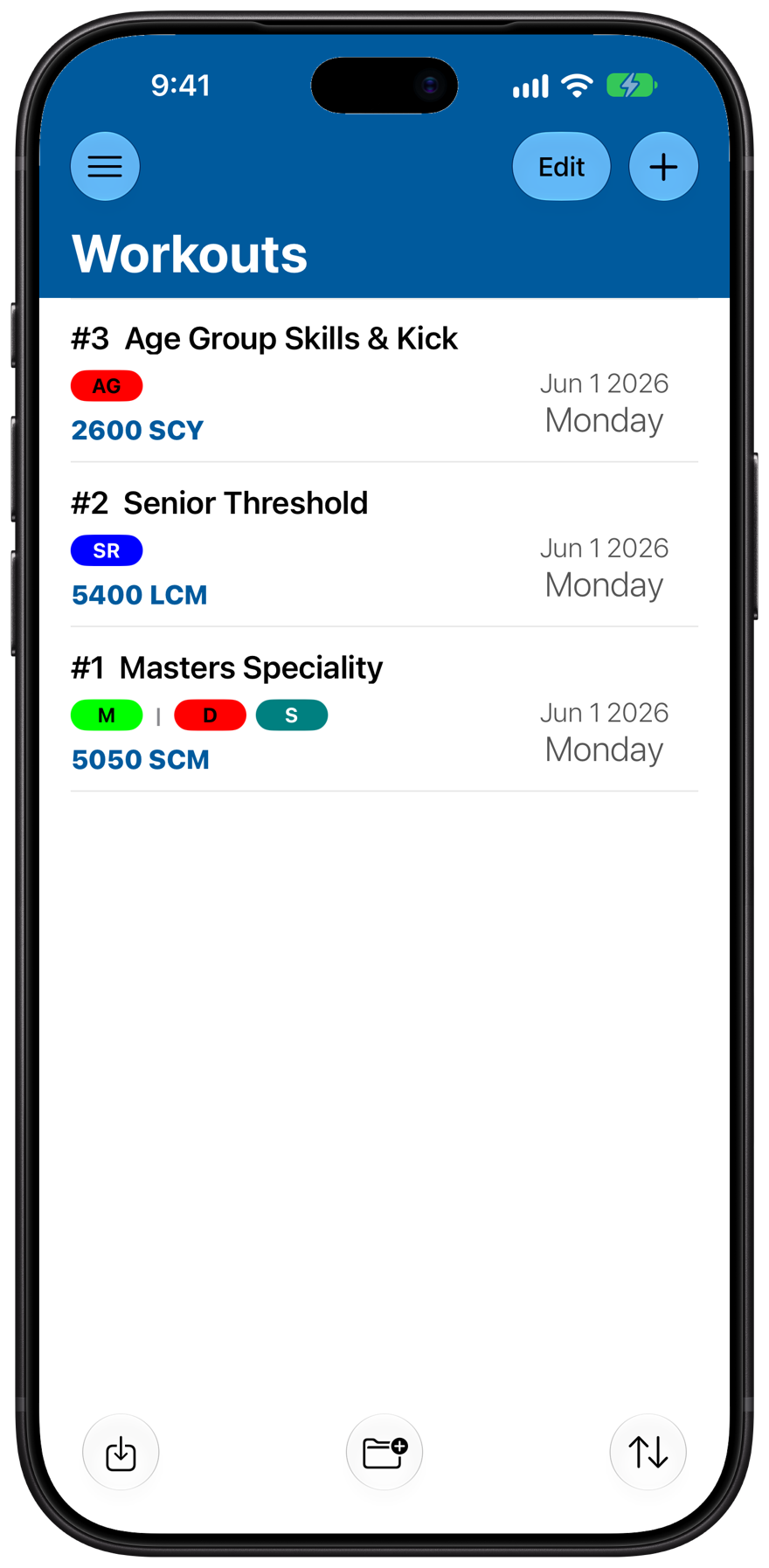
Your template workouts
These are ready-made template workouts included with the app. Open one to see how a workout is built, or try programming a pace clock from it, before you make your own. The colored pill marks the group it is for.
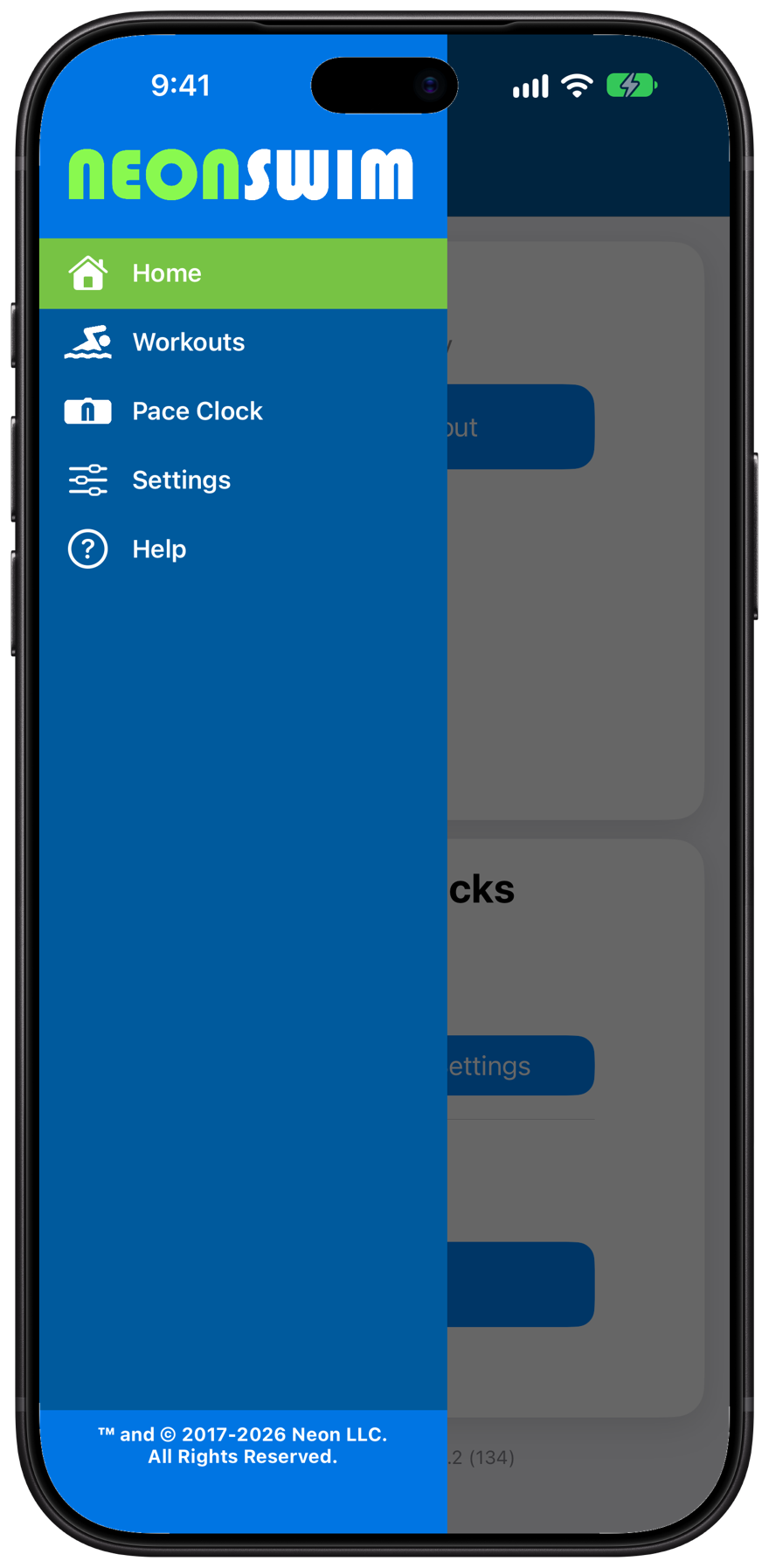
The main menu
The side menu moves you between the app's main areas: Home, Workouts, Pace Clock, and Settings. Help opens this guide any time.
Tap the menu button to open it.
Create your first workout
Make a workout of your own. This covers the Add Workout form and what each choice sets up.
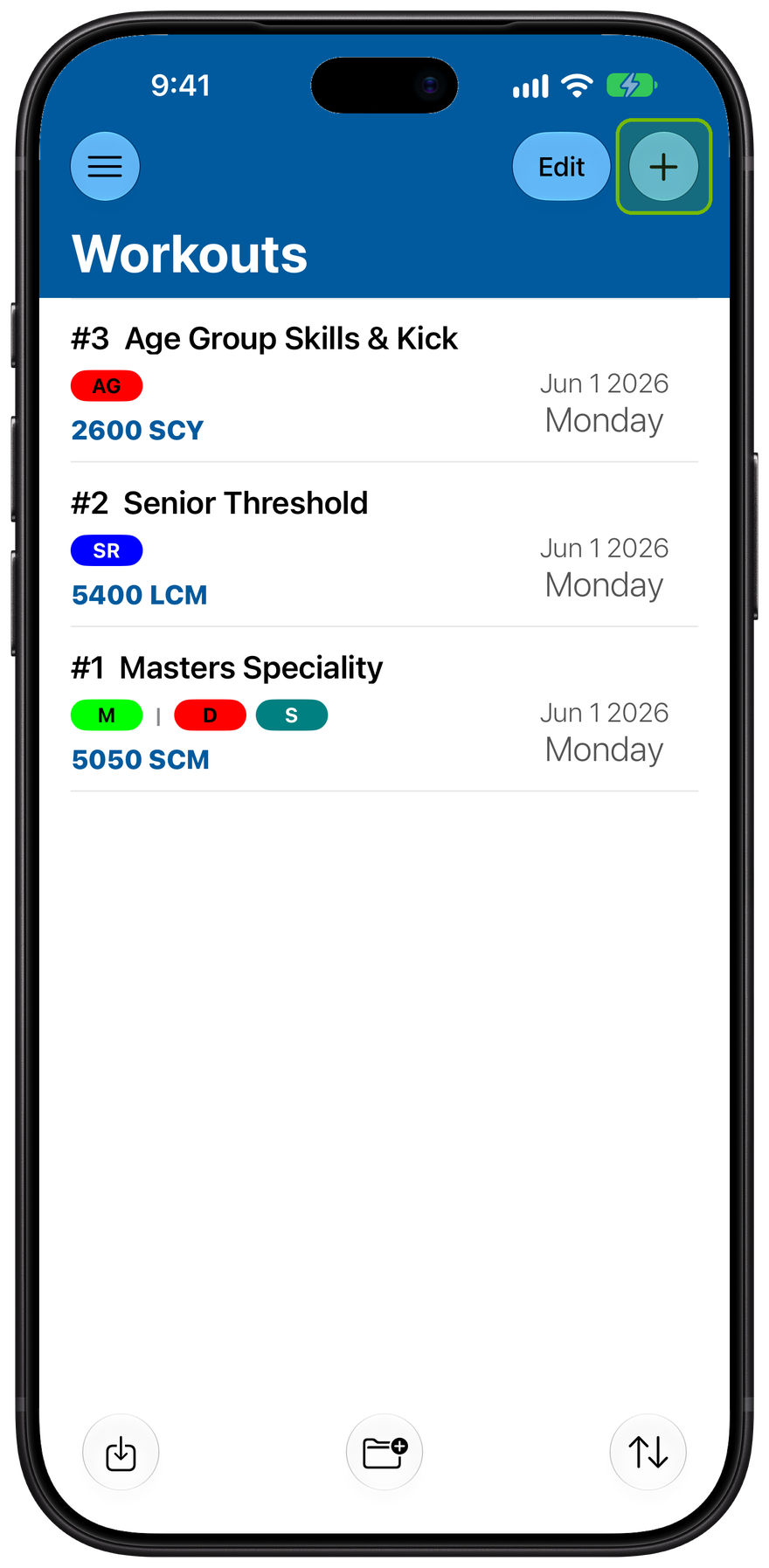
Add a workout
The Workouts list holds every practice you create. New workouts start from here.
Tap the + button, top right, to start one.
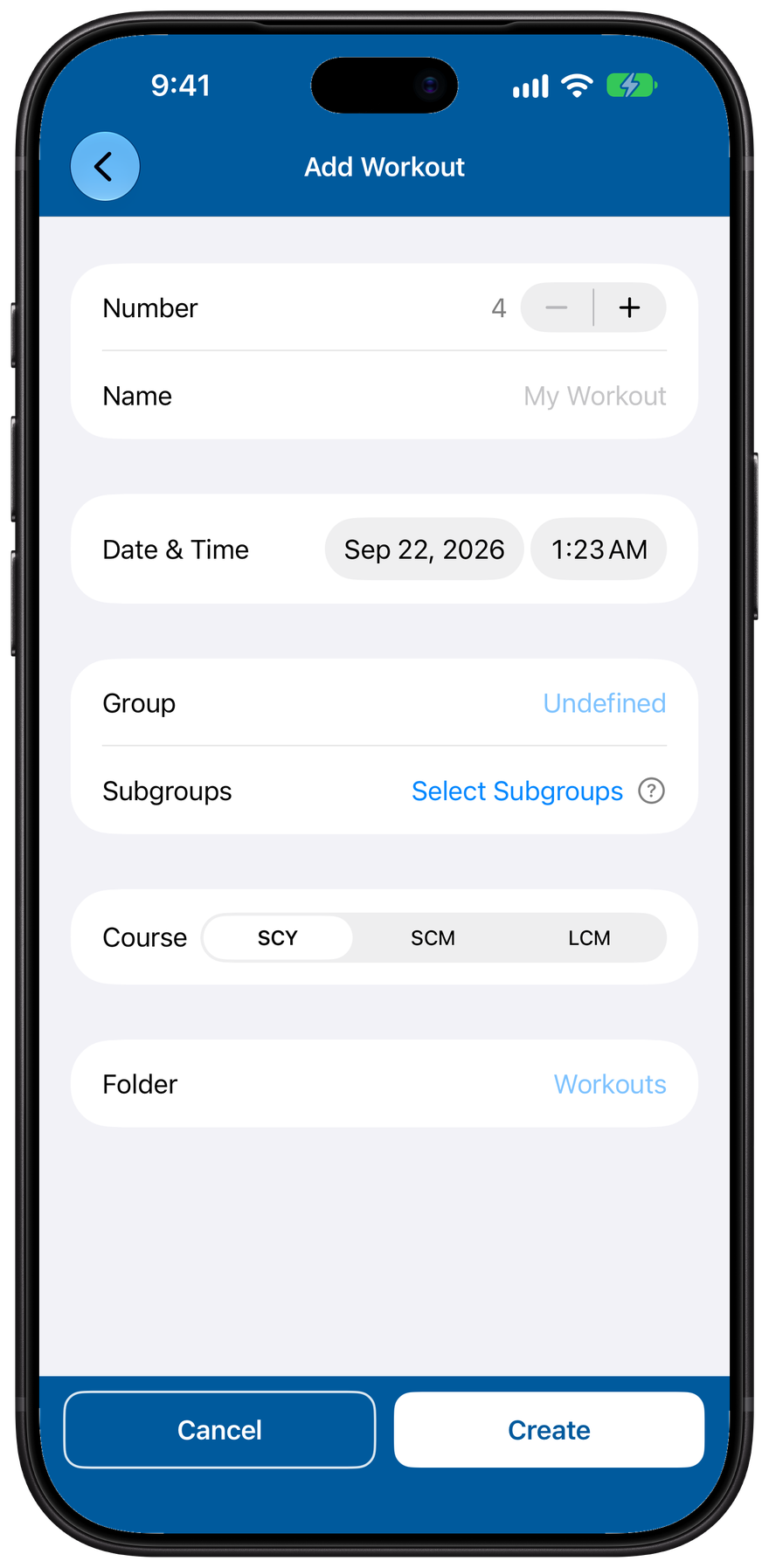
The Add Workout form
Set up the basics. Name the workout and give it a date (today's workouts show on Home). Choose the Course, your pool and units, SCY, SCM, or LCM, which sizes every distance you add.
Fill in the fields, then tap Create.
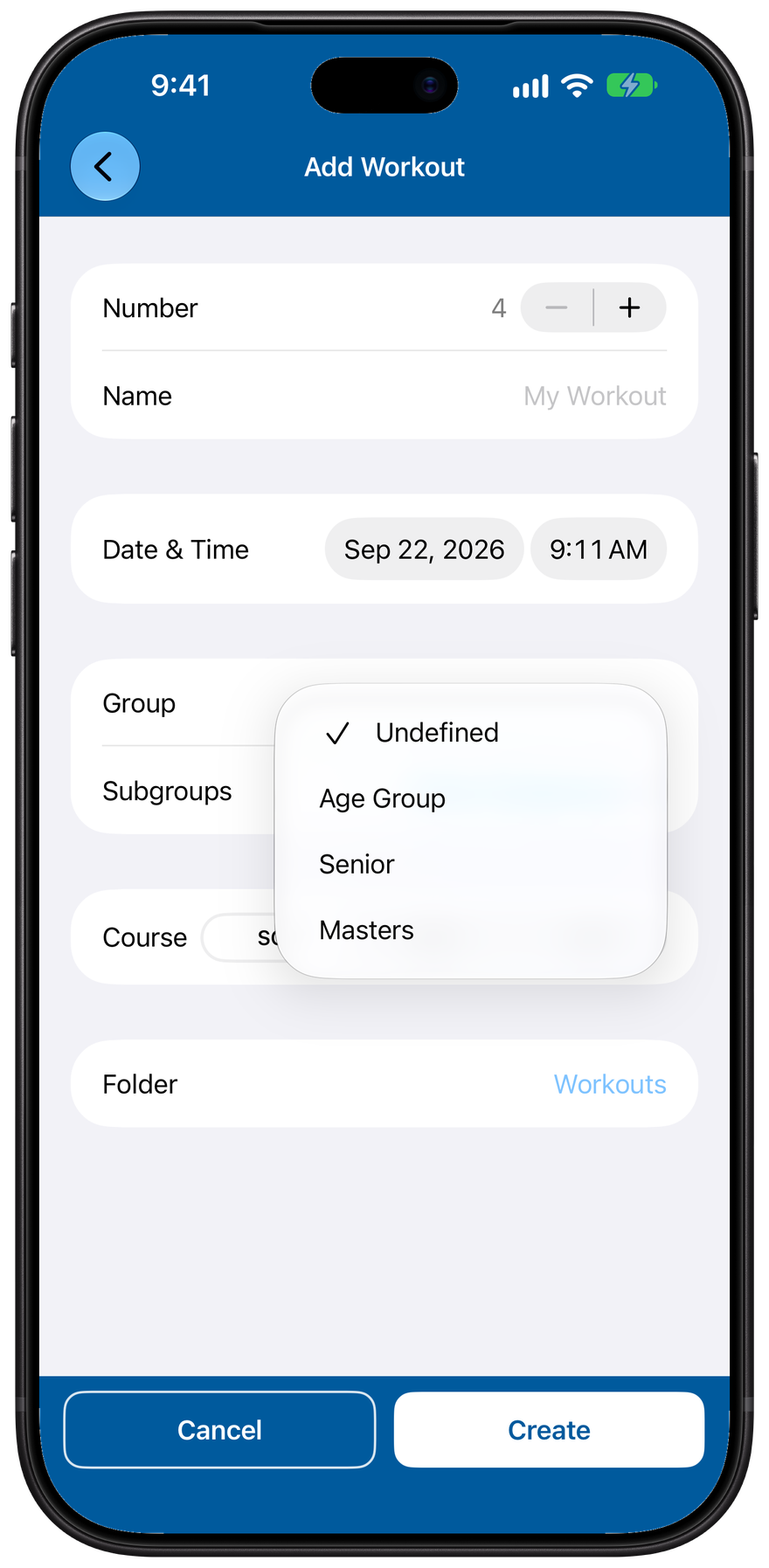
Assign a group
Group says which squad the workout is for. Your choice becomes the colored pill on the workout, so you can tell groups apart at a glance.
Pick a Group, or leave it Undefined.
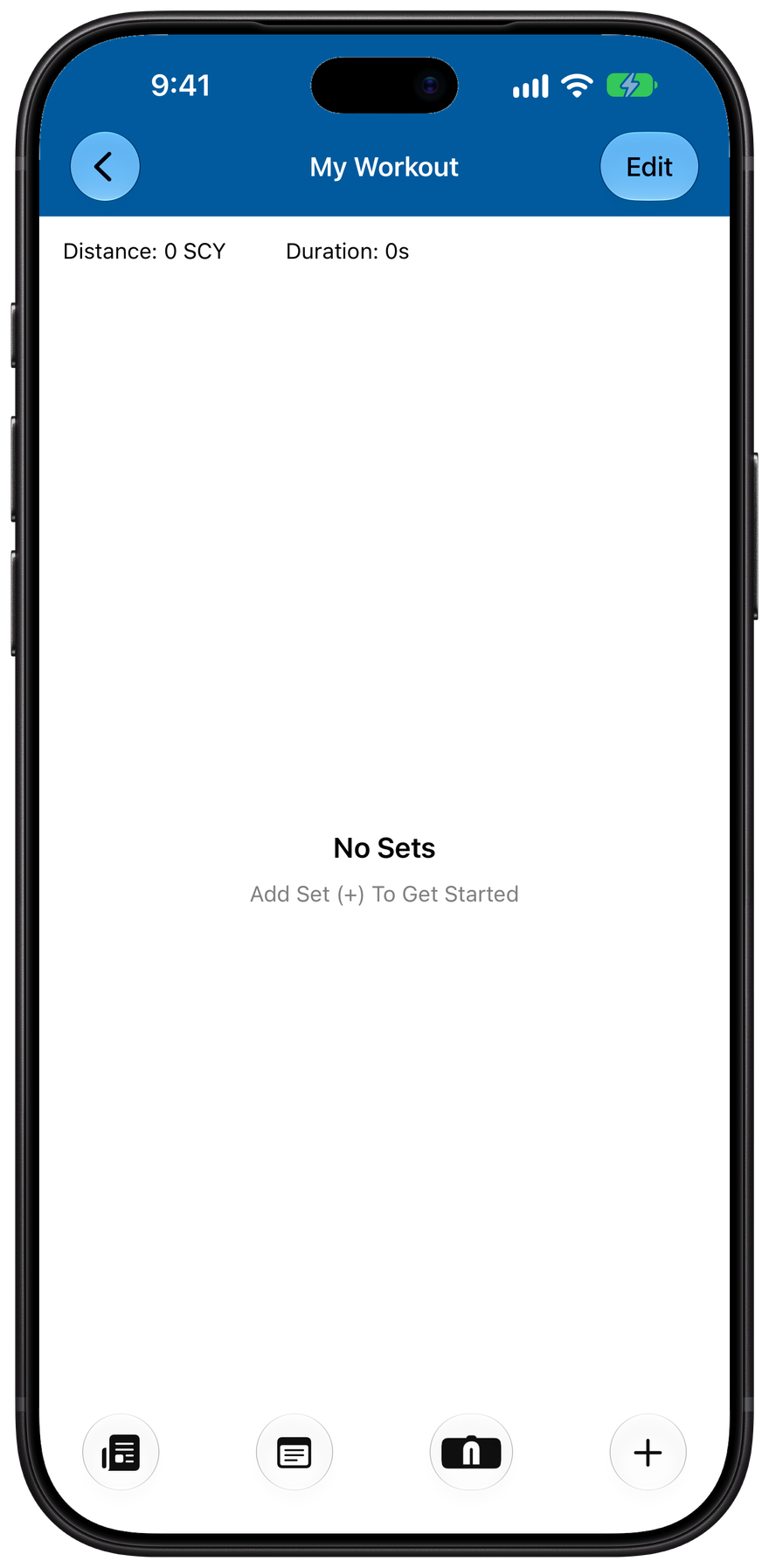
Your new workout
Tap Create and your workout opens, empty and ready. Its distance and time stay at zero until you add sets, which is the next lesson.
Tip: a plain tap on a workout opens it to view and add sets. To change its name, date, or Group later, tap Edit at the top right of the Workouts list, then tap the workout.
Build sets and lines
A workout is organized into sets, and each set is a list of lines. Here is how they fit together and how to edit them, shown with a ready-made workout.
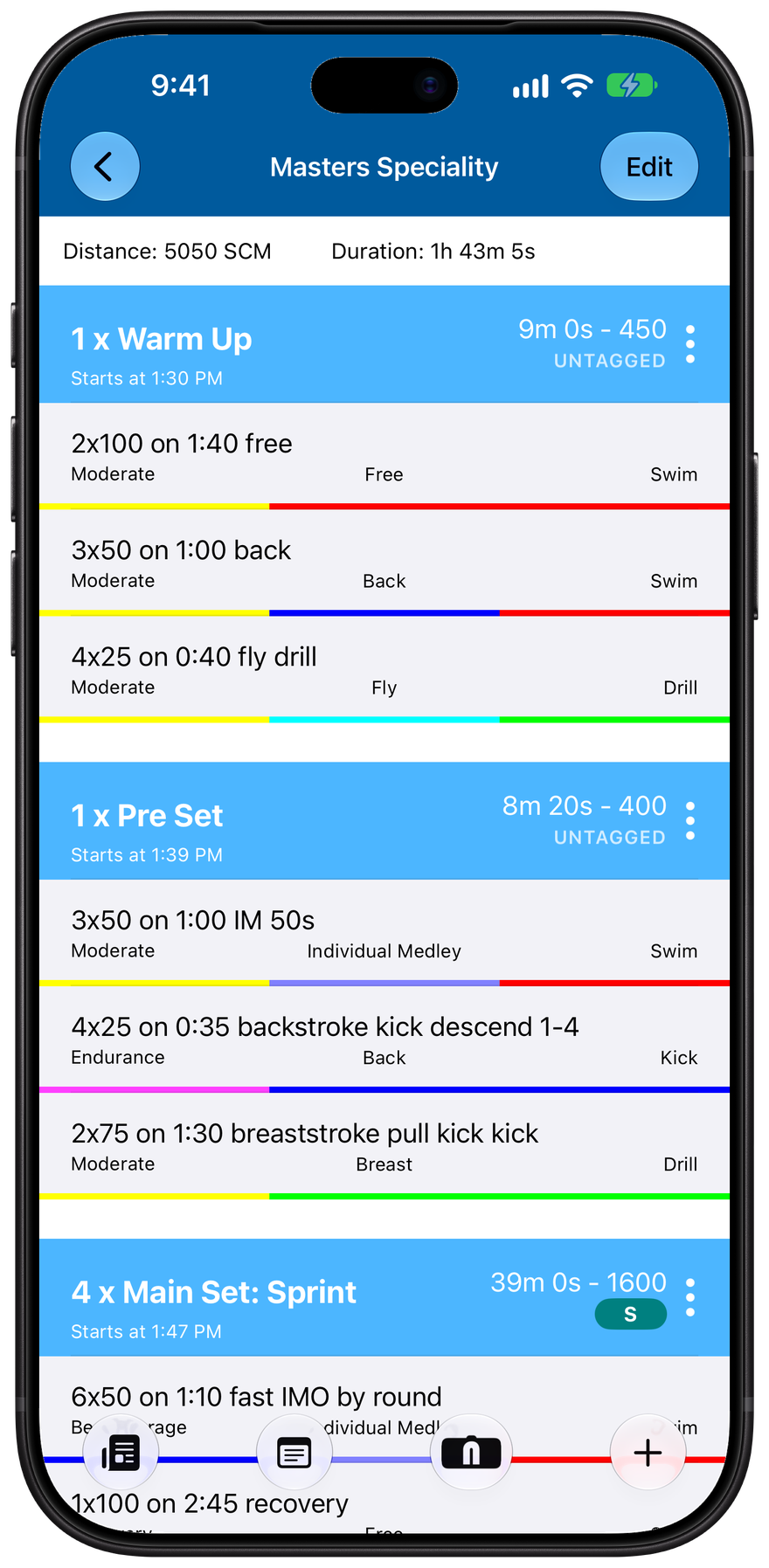
Sets and lines
A workout is built from sets, and each set holds one or more lines. A set's header shows its rounds, its total time and distance, when it starts, and whether it's tagged for specific swimmers.
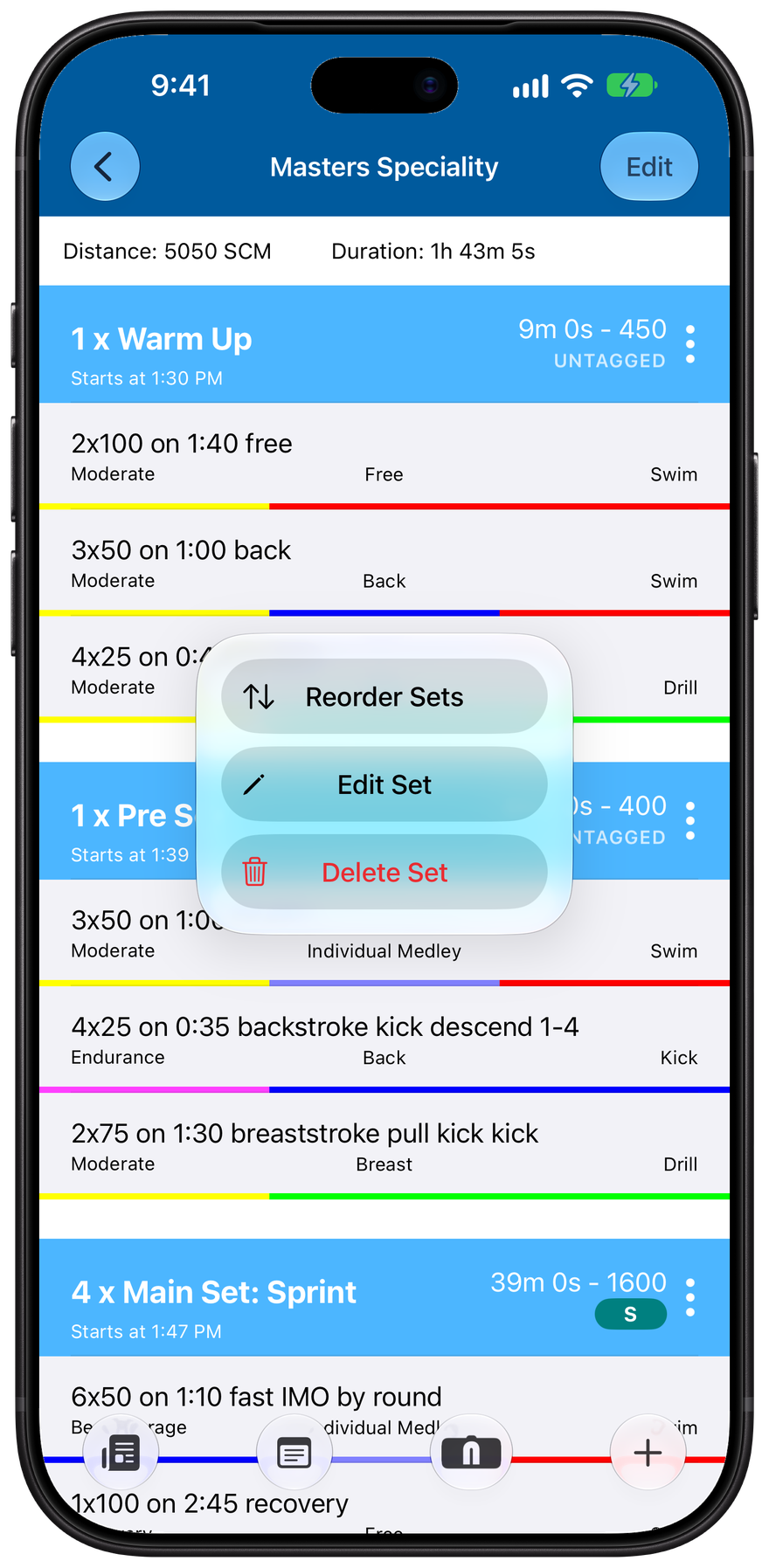
Manage a set
Tap the ⋮ on any set header to manage it. Reorder Sets changes the practice order, Edit Set opens the set to change, and Delete Set removes it.
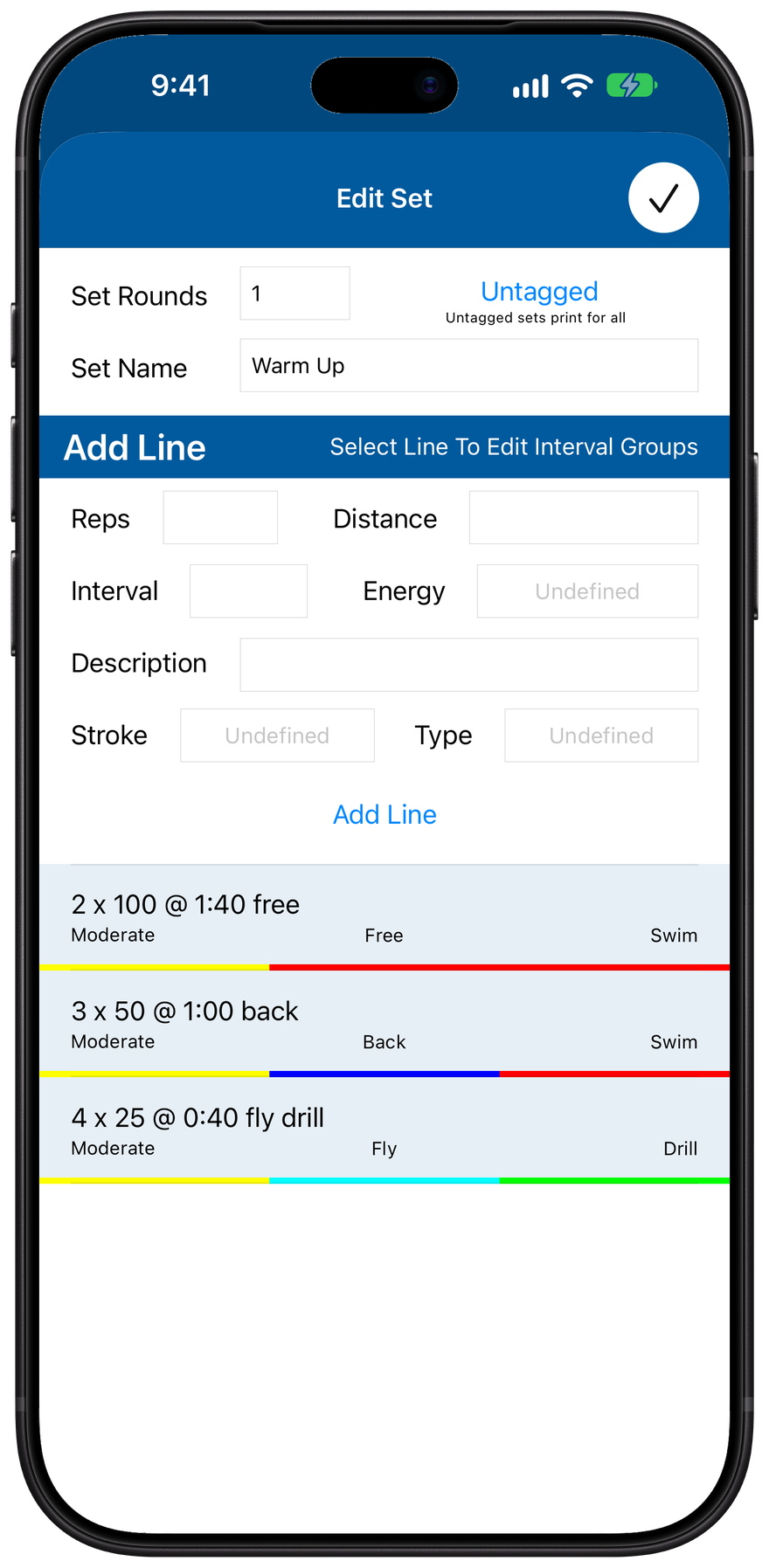
Edit a set
Editing a set: give it a name, set how many rounds to repeat, and build its lines. Each line is a prescription: reps, distance, interval, and a description, plus its stroke, type, and energy zone.
Fill the fields and tap Add Line.
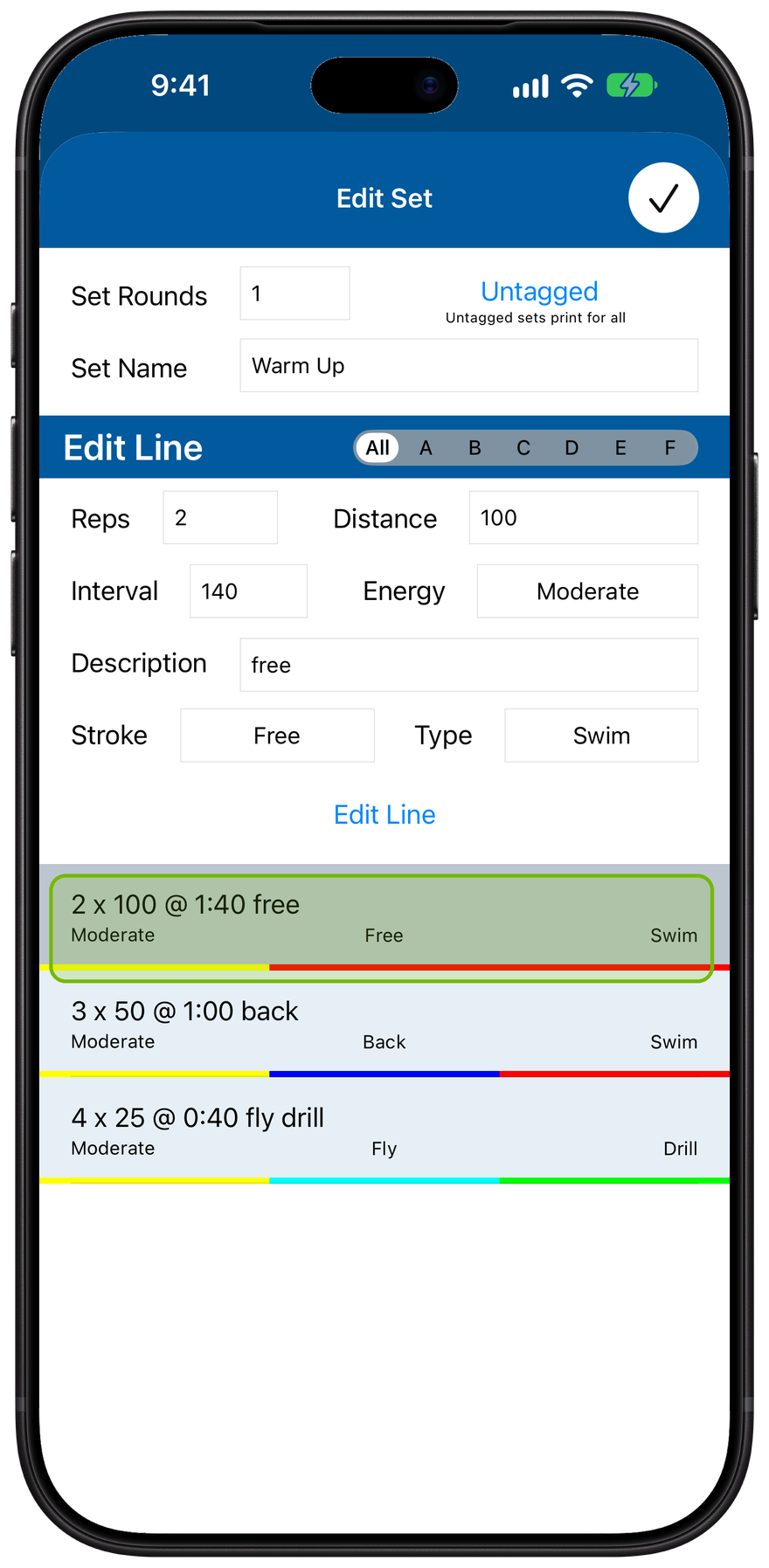
Inside a line
Tap a line to edit it. A line is reps, distance, and interval: 2 x 100 @ 1:40 means swim it twice, 100 each, on a 1:40 send-off. Stroke, type, and energy zone set the rest.
Import workouts
Already have workouts in another program? Bring them into Neon Swim instead of retyping them. This covers where import lives and how it works.
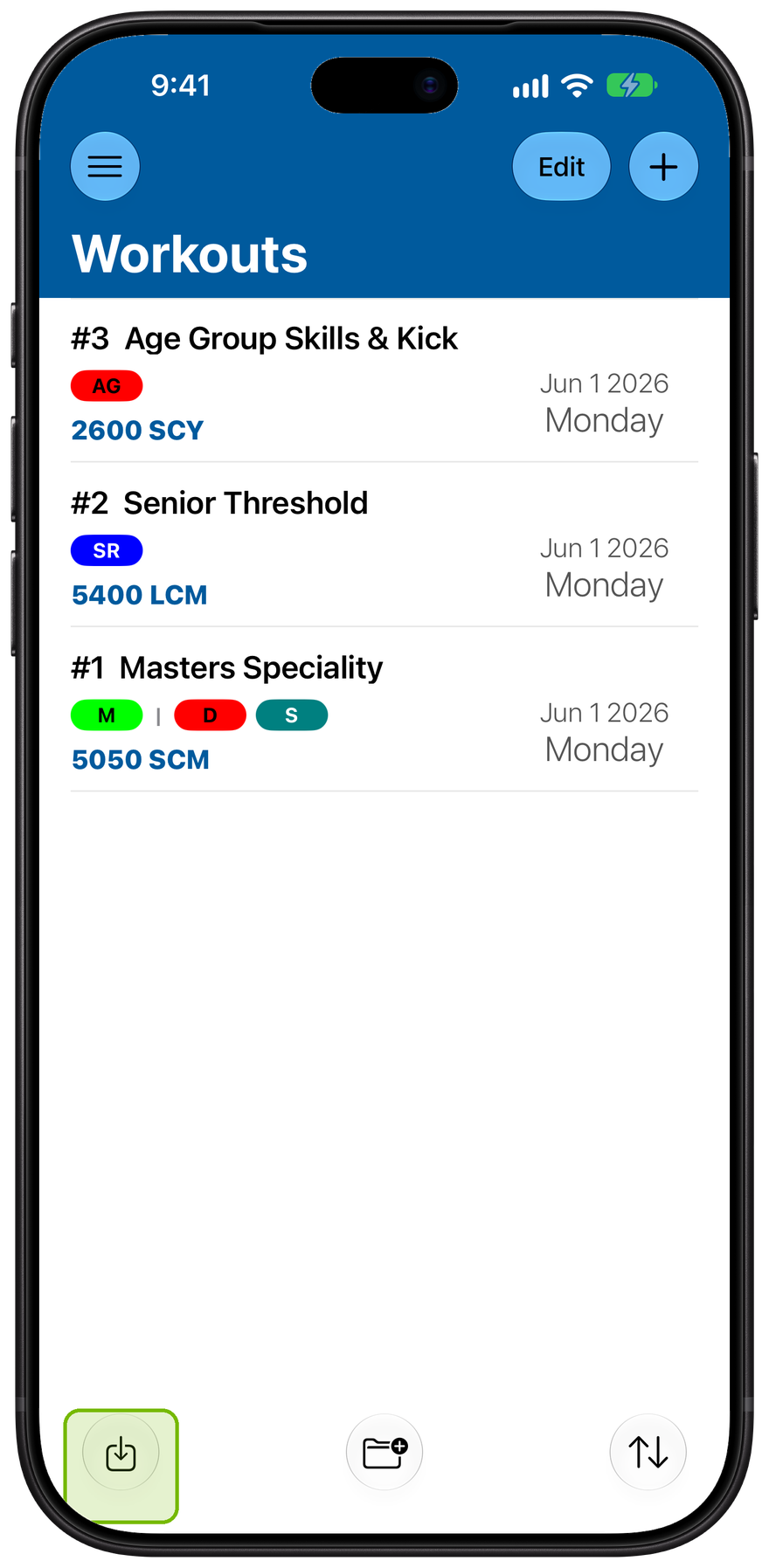
Find import
Import lives in the Workouts toolbar. Use it to bring in workouts you already have somewhere else, instead of building them again by hand.
Tap the import button, bottom left.
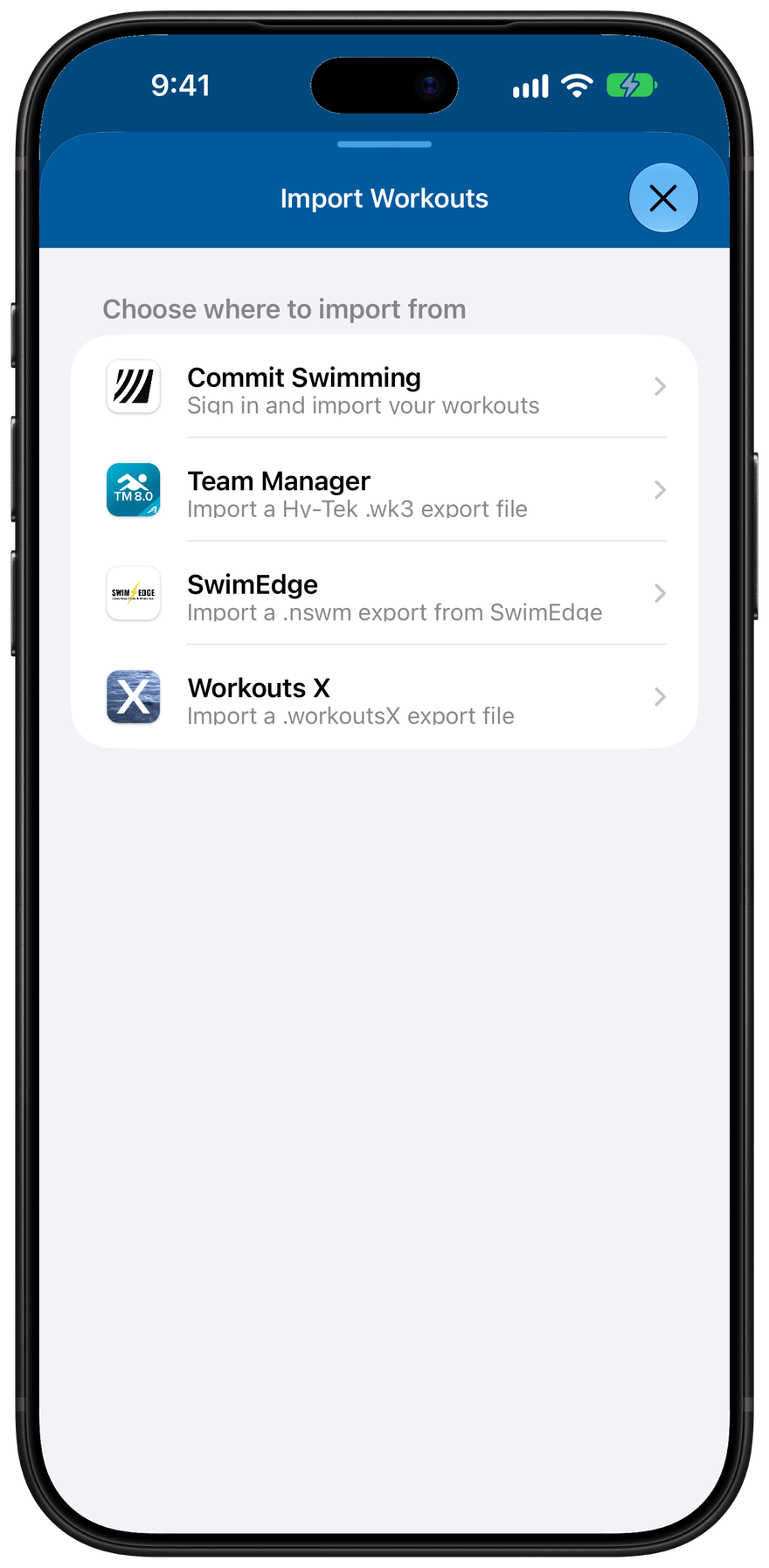
Choose your source
Choose where your workouts are coming from. Commit Swimming signs into your account. Team Manager, SwimEdge, and Workouts X each read an export file from that program.
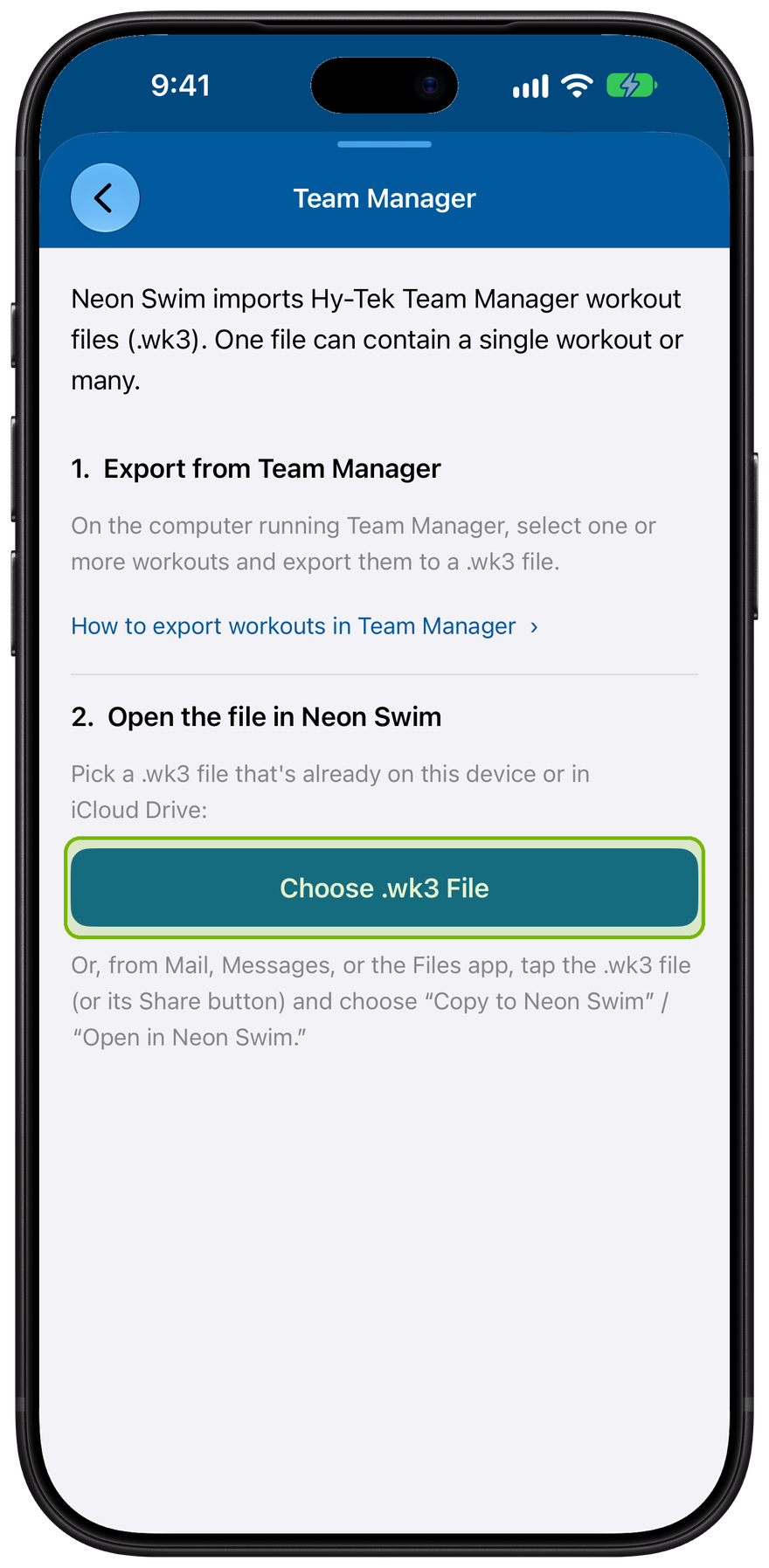
Export, then pick your file
Each source explains its steps: export the file from that program, then choose it here. Neon Swim reads the file and shows you what's in it, so you confirm before anything is added.
Tap Choose .wk3 File, then confirm the import.
Tip: imported workouts bring their own groups and subgroups with them. A workout's colored pills keep working even if they are not in your Settings, so there is nothing to set up first.