Neon Swim User Guide › Chapter 6
Chapter 6Make it yours
Every label Neon puts on a set, its energy zone, stroke, and type, comes from a list you control. Rename them, recolor them, add your own, and choose how they show up on every workout.
Customize parameters and display
Neon's energy zones, strokes, types, and groups are all yours to rename, recolor, reorder, and add to. Then you choose how those colors appear on every set.
Your parameter lists
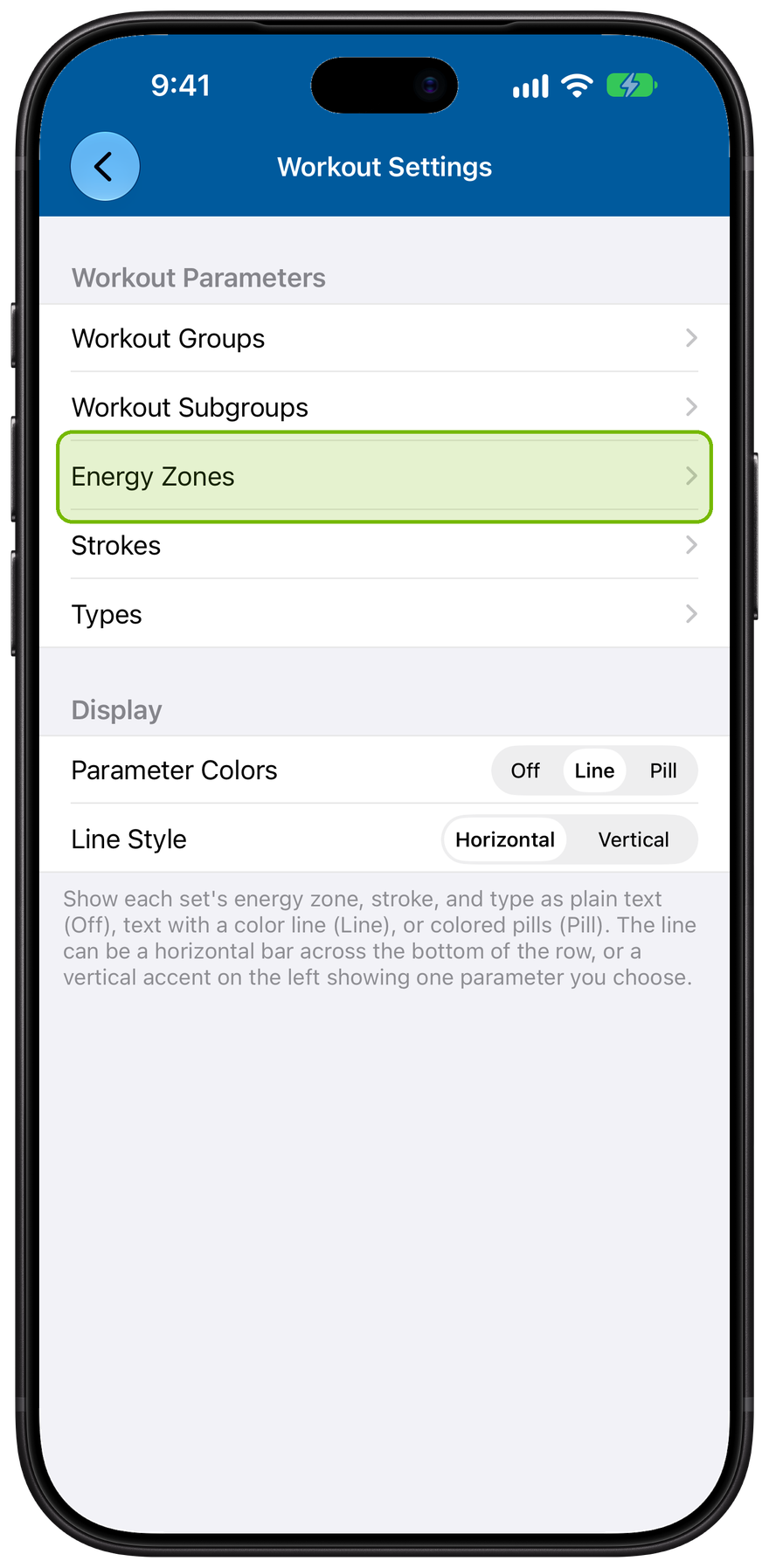
In Settings, Workouts, five lists define your labels: Workout Groups, Subgroups, Energy Zones, Strokes, and Types.
Open any list to edit it.
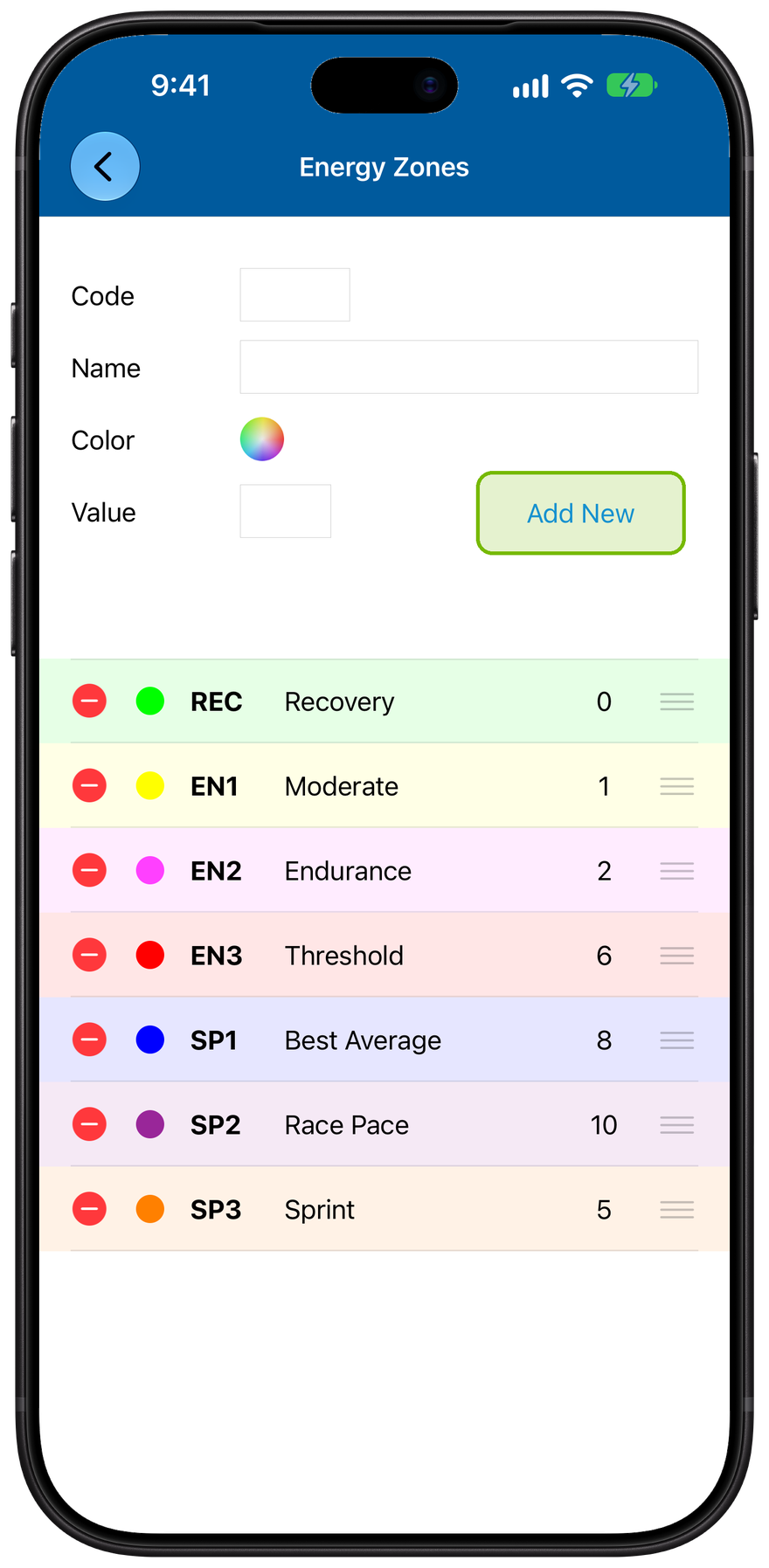
Rename, recolor, or add
Each entry has a Name, a short Code, and a color. Energy Zones also carry a Value that feeds Neon's calculated stress.
Tap Add New to make your own.
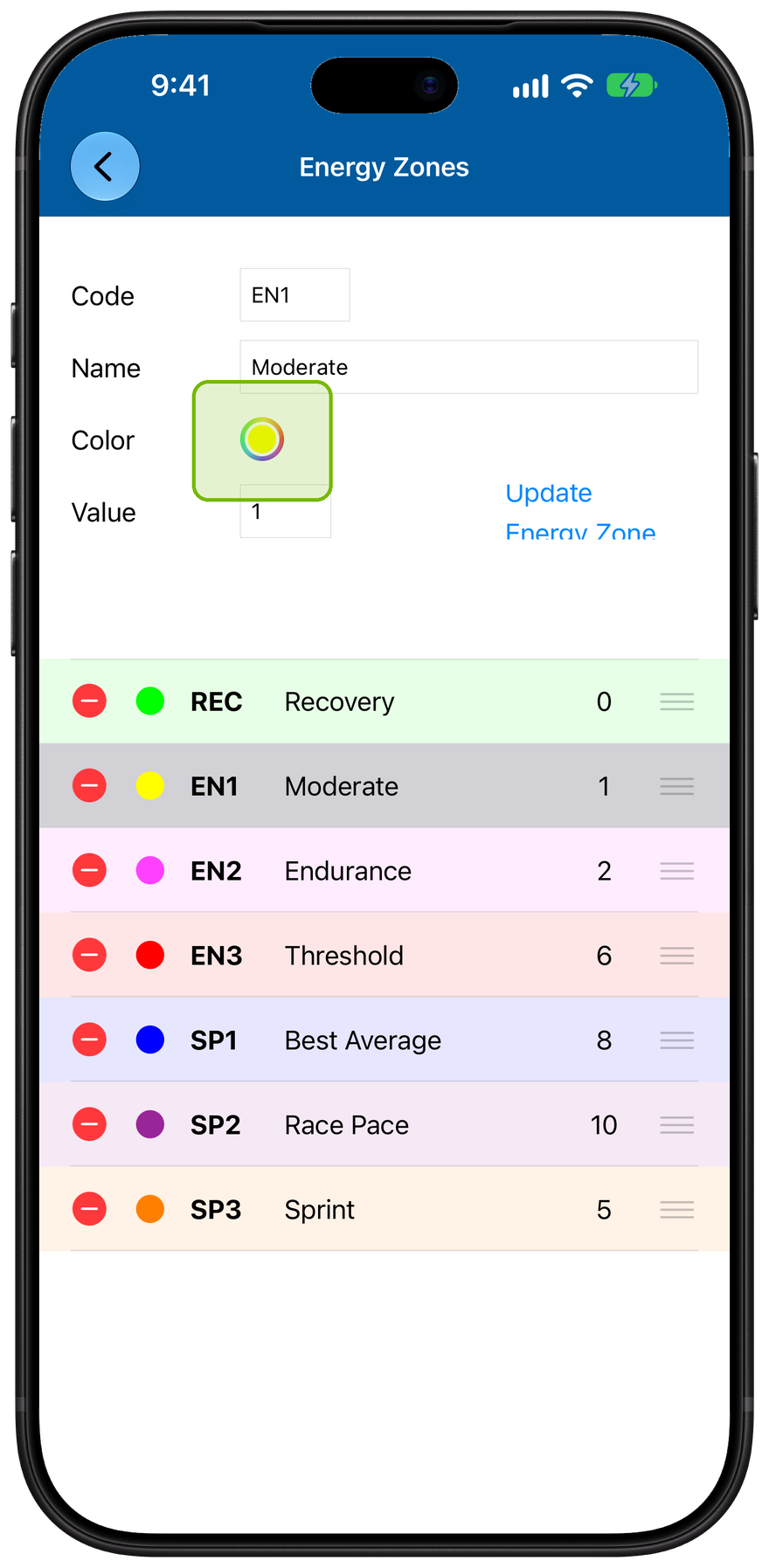
Edit an entry
Tap an entry to load it, change its name, code, or color, then Update. The Name shows on your workouts; the Code is the short form used on printed sheets.
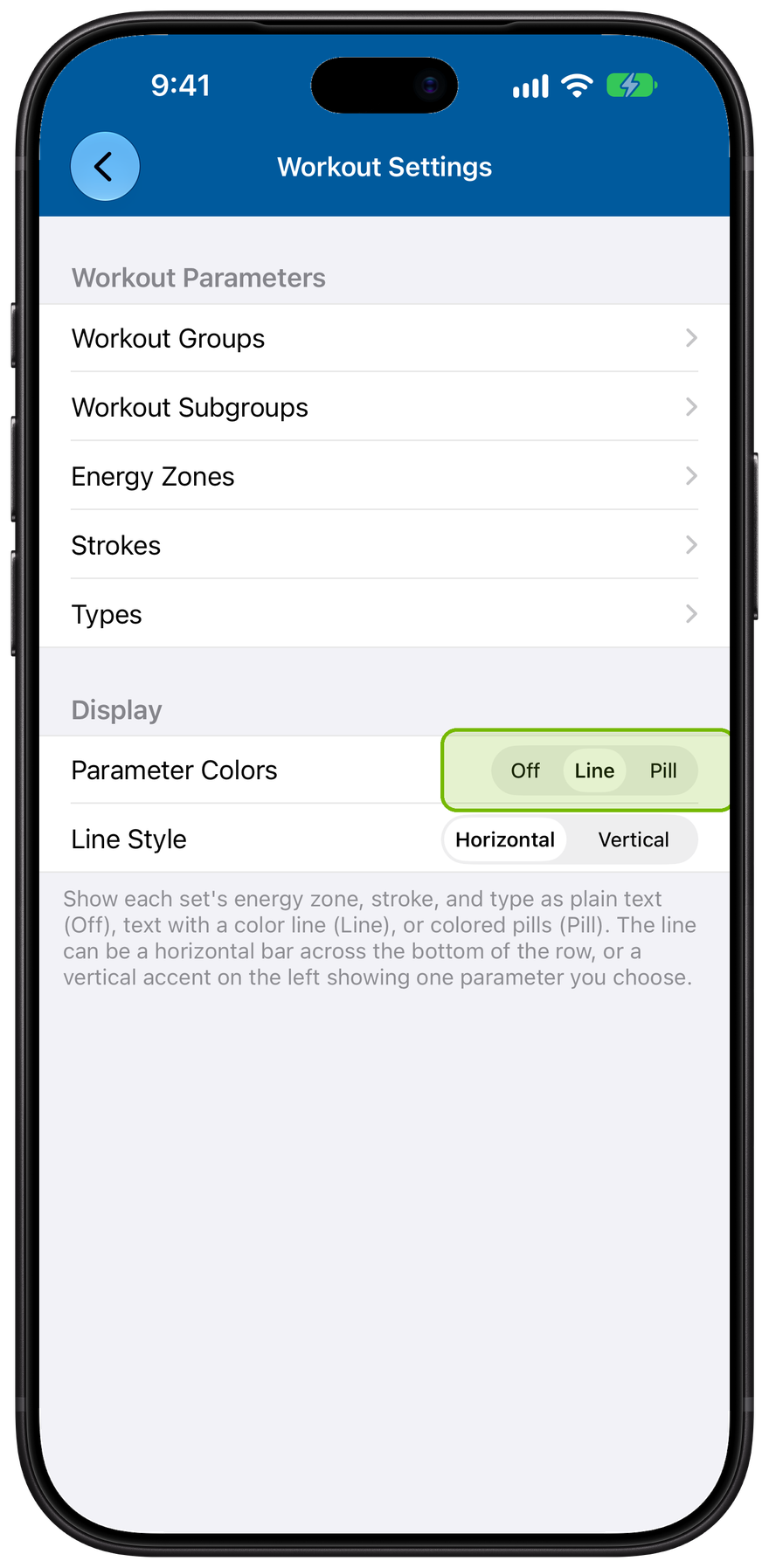
Choose how colors show
Parameter Colors decides how each set wears its labels: Off for plain text, Line for a color line, or Pill for colored pills.
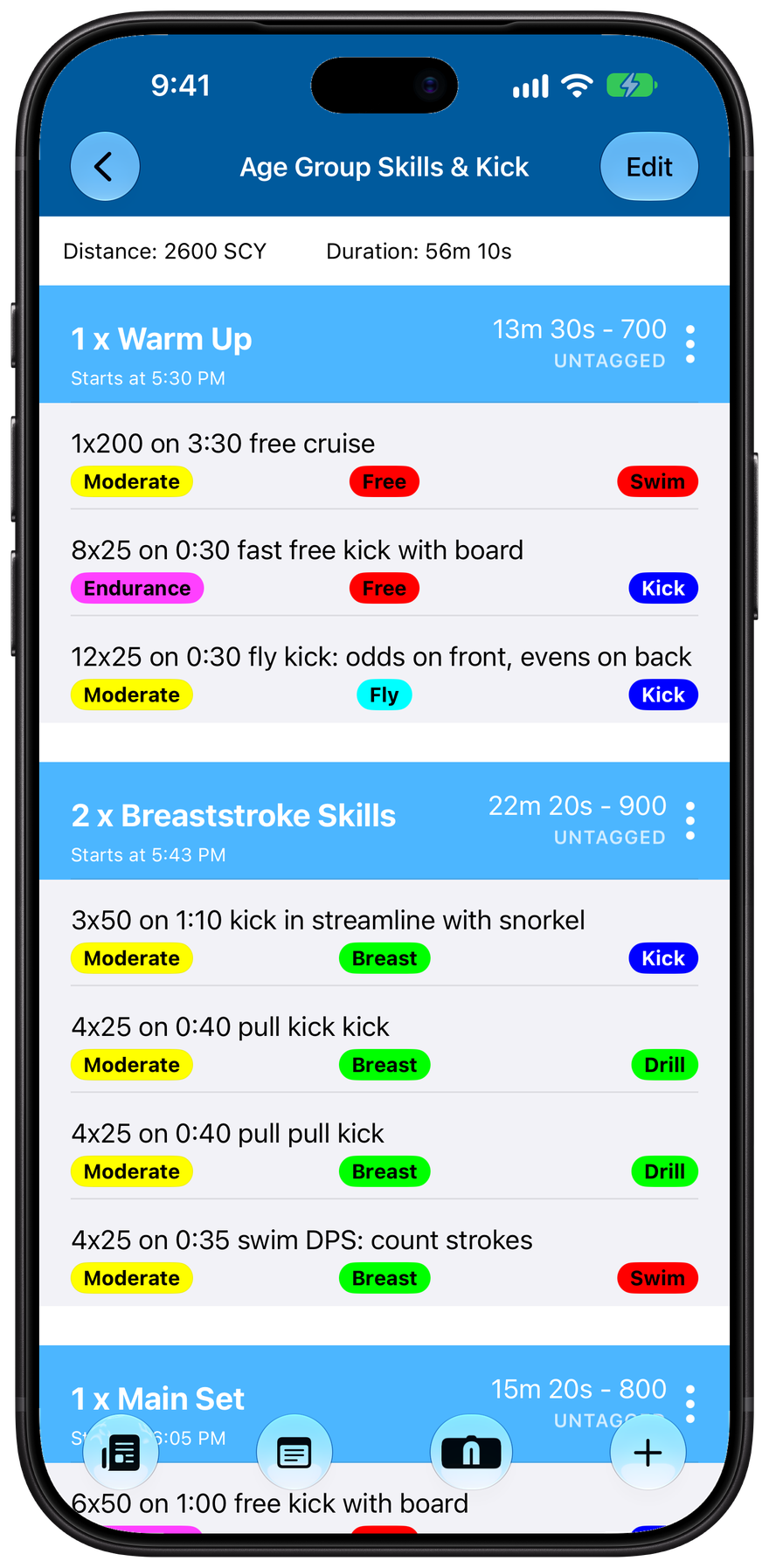
Colors on every set
In Pill mode, every set's energy zone, stroke, and type reads at a glance in its own color, right there on the workout.