Neon Swim User Guide › Chapter 5
Chapter 5Big screens and your wrist
Put your pace clocks on a TV or LED video board the whole pool can see, and keep them on your wrist with the Apple Watch app.
NeonCast
NeonCast puts your pace clock displays on a TV, projector, or LED video board. Your phone stays the controller; the big screen becomes a giant, read-only clock the whole pool can see.
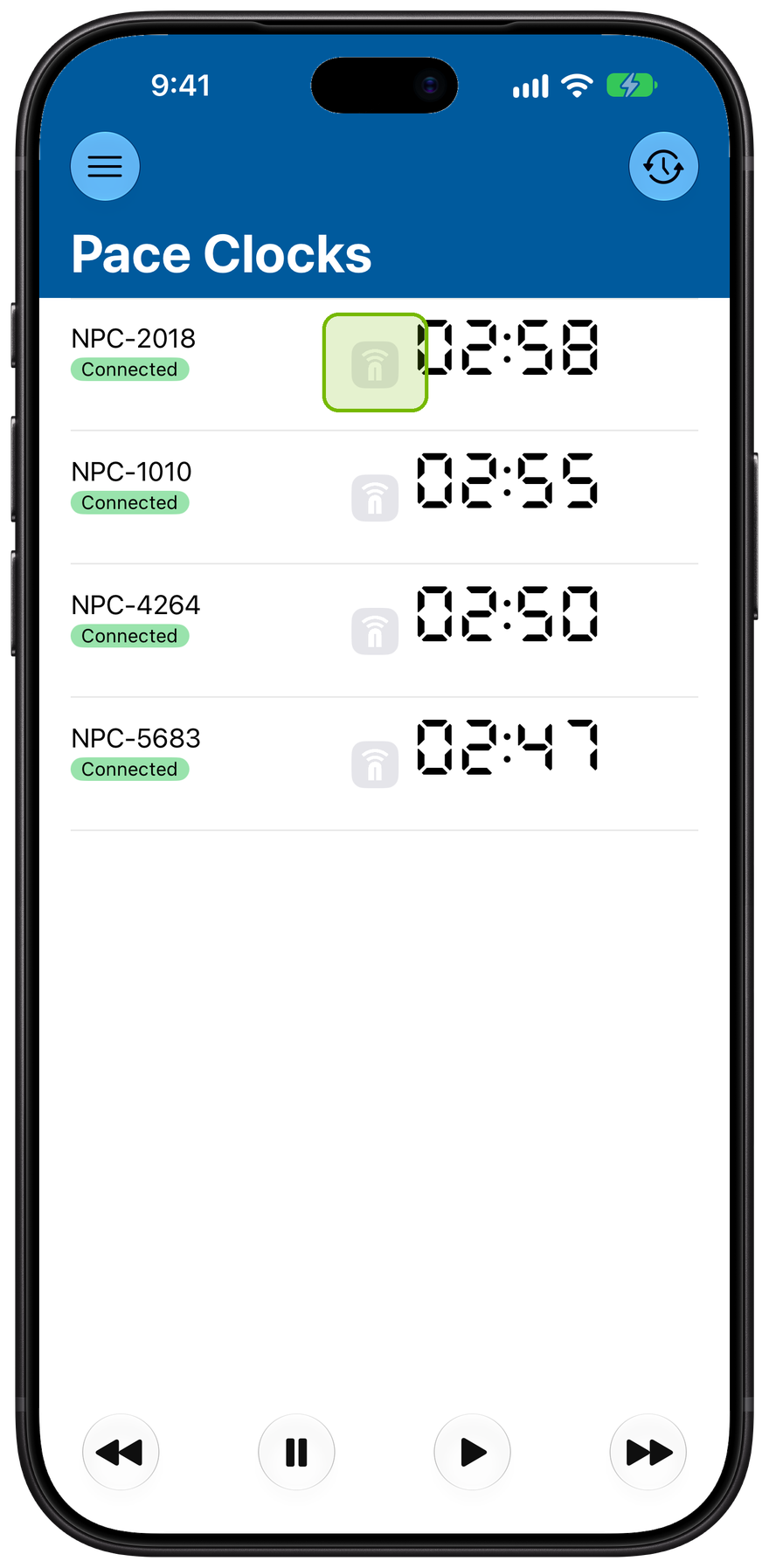
Cast from the Pace Clocks list
Connect a TV or projector, and a cast icon appears beside each clock. Tap it to send that clock to the screen.
Tap the cast icon.
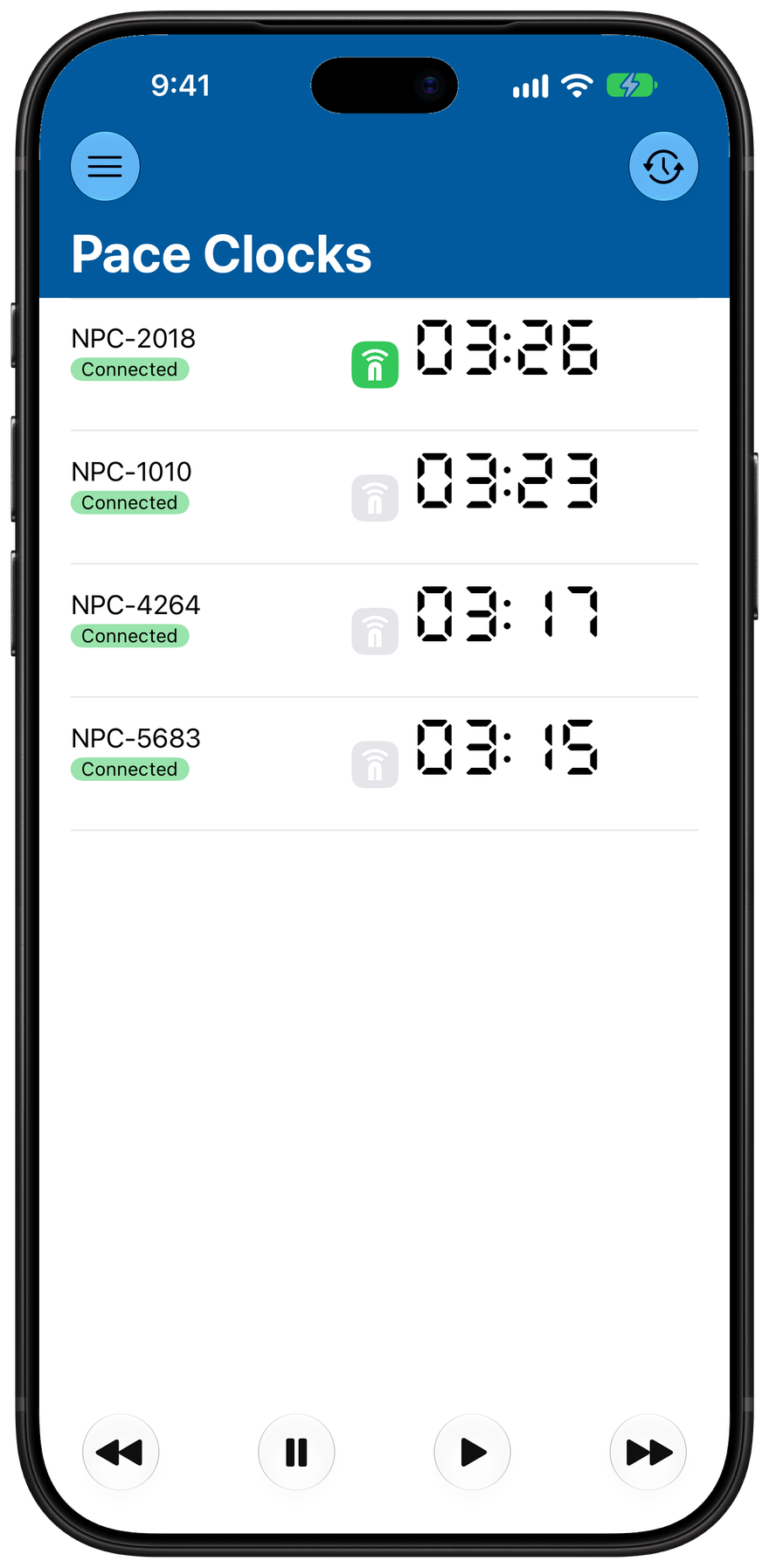
Green means it's on
The icon turns green while that clock is on the screen. Gray means it's off. Cast up to four clocks at once.

On the screen: one clock, big. Cast a clock and it fills the screen with its name, its time, and a green Connected badge, readable from anywhere on the deck. Start a workout and the current set and the line the group is on appear too.

Or up to four at once. Cast up to four clocks and NeonCast arranges them automatically, one lane each. A blue badge marks each group's letter. Ideal for a video board running several groups side by side.
Apple Watch
Your Apple Watch is a wrist companion for your pace clocks. During a workout, run every clock or watch just one, without reaching for your phone.
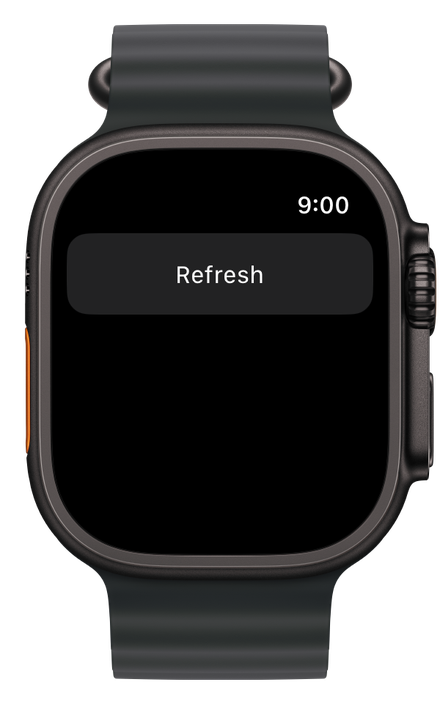
Open and refresh
Open Neon Swim on your watch and refresh to load the clocks your phone knows about.
Tap Refresh.
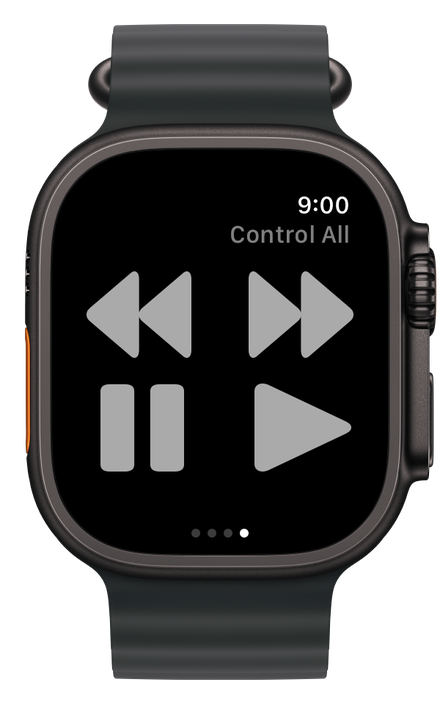
Control them all
The Control All page runs every clock at once: back, pause, play, and forward, straight from your wrist.
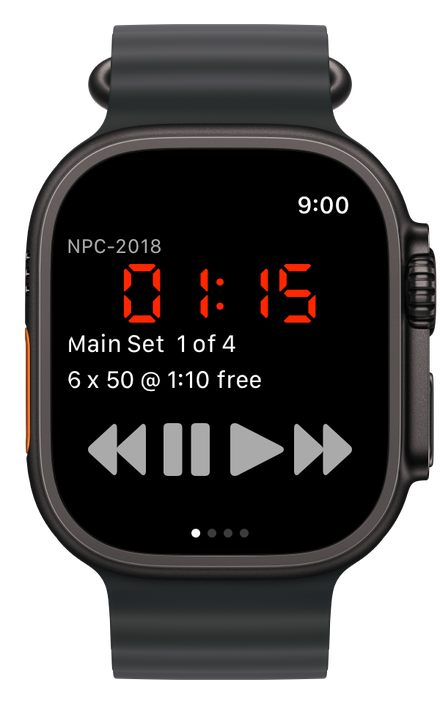
Or watch just one
Swipe to any clock to see it big on your wrist, with its own back, pause, play, and forward controls below.